> For the complete documentation index, see [llms.txt](https://docs.controlbee.nl/llms.txt). Markdown versions of documentation pages are available by appending `.md` to page URLs; this page is available as [Markdown](https://docs.controlbee.nl/profiel/omgevingsbeheer/instellingen-omgevingsbeheer.md).

# Instellingen omgevingsbeheer

Two-factor authenticatie en Single Sign-On via Microsoft Azure instellen

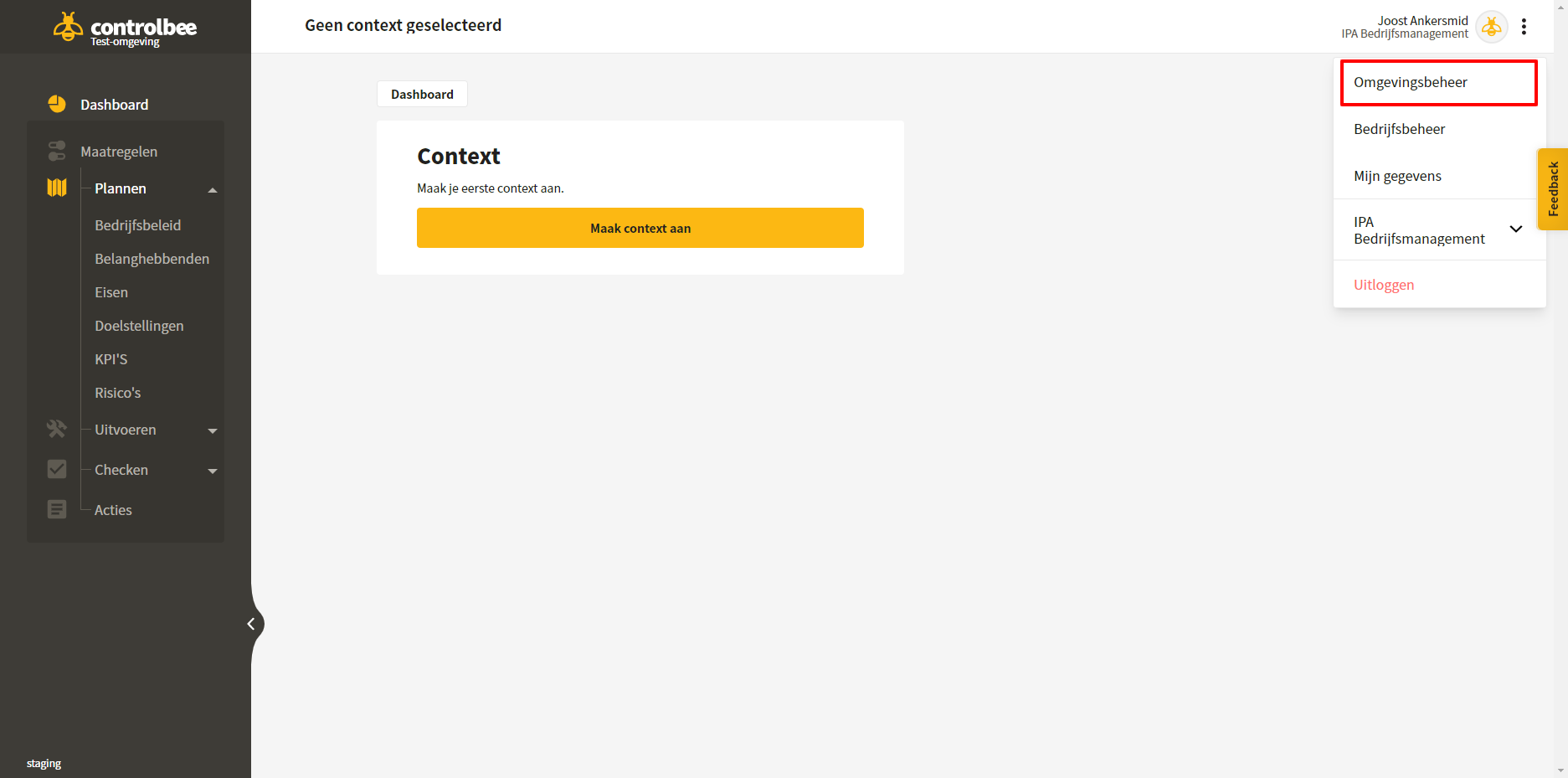
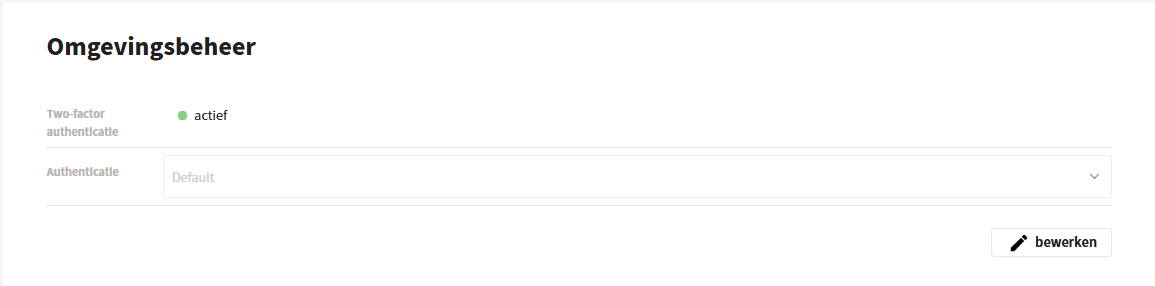
In het omgevingsbeheer kan two-factor authenticatie worden ingesteld, en kan Single Sign-On via Microsoft Azure worden gekoppeld.

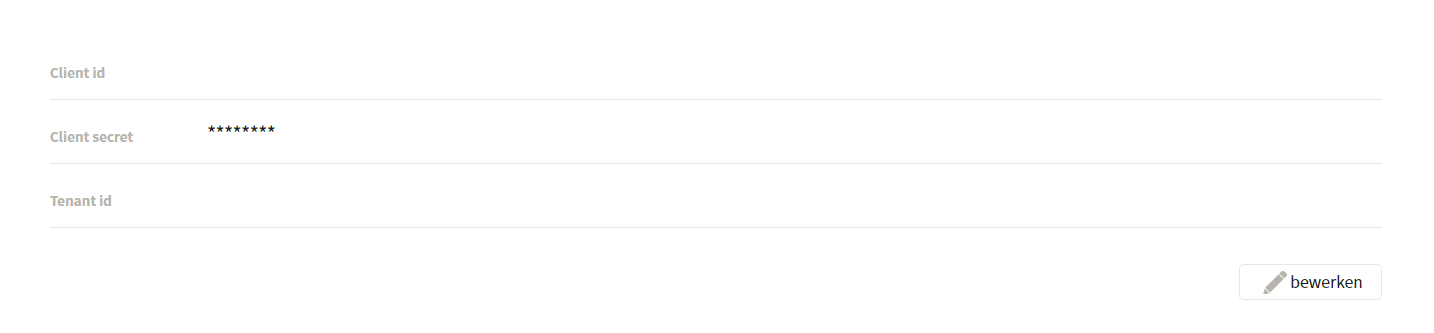
<figure><img src="https://554473028-files.gitbook.io/~/files/v0/b/gitbook-x-prod.appspot.com/o/spaces%2FGr73dCEp7VK8XigZ4lH9%2Fuploads%2Fgit-blob-8d1125bb07f03f07b7a263e67ea5922c79a449c1%2Fprofiel-omgevingsbeheer-instellingen-omgevingsbeheer-01.png?alt=media" alt="Het scherm Omgevingsbeheer"><figcaption><p>Het scherm Omgevingsbeheer</p></figcaption></figure>

## Single Sign-On instellen

Om deze instellingen te kunnen beheren moet je binnen ControlBee de rol omgevingsbeheerder hebben. Daarnaast moet er een administrator van de Microsoft Azure-omgeving van de betreffende organisatie beschikbaar zijn.

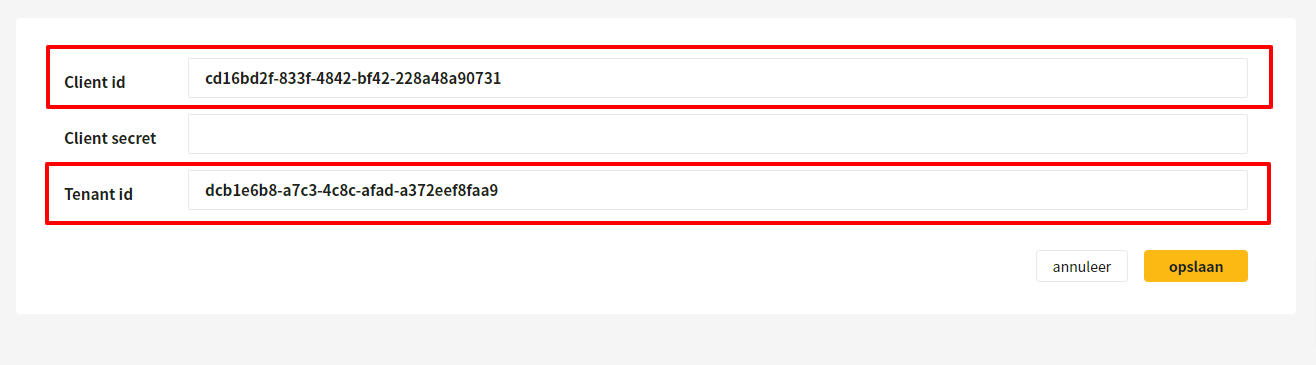
Op de pagina Omgevingsbeheer staan drie velden:

* **Cliënt-id** — binnen Azure ook wel toepassings-id genoemd. De unieke code waarmee ControlBee binnen de Microsoft-omgeving wordt geïdentificeerd.
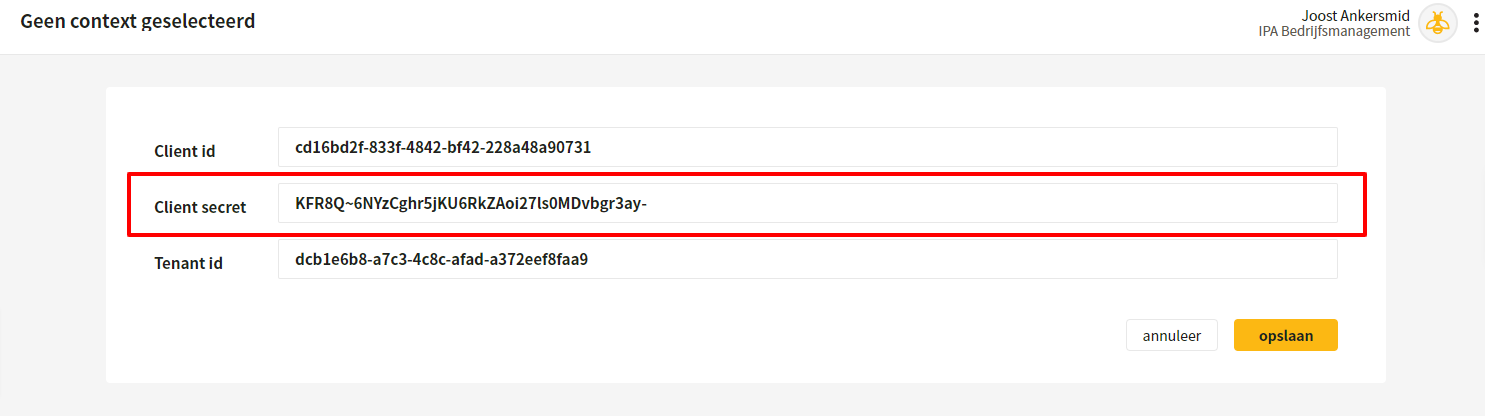
* **Cliënt secret** — de sleutel (het wachtwoord) die ControlBee nodig heeft om verbinding te maken met de Microsoft-omgeving.
* **Tenant-id** — de unieke code waarmee ControlBee de betreffende Microsoft-omgeving vindt.

<figure><img src="https://554473028-files.gitbook.io/~/files/v0/b/gitbook-x-prod.appspot.com/o/spaces%2FGr73dCEp7VK8XigZ4lH9%2Fuploads%2Fgit-blob-291c9302b174e3c7f2c3a967b27efc01f77db8f8%2Fprofiel-omgevingsbeheer-instellingen-omgevingsbeheer-02.png?alt=media" alt="De drie velden voor de Azure-koppeling"><figcaption><p>De drie velden voor de Azure-koppeling</p></figcaption></figure>

## Stappenplan

### 1. Ga naar het Azure-portaal van de organisatie

Via [portal.azure.com](https://portal.azure.com). Dit moet gebeuren door iemand met administratorrechten in de Microsoft-omgeving.

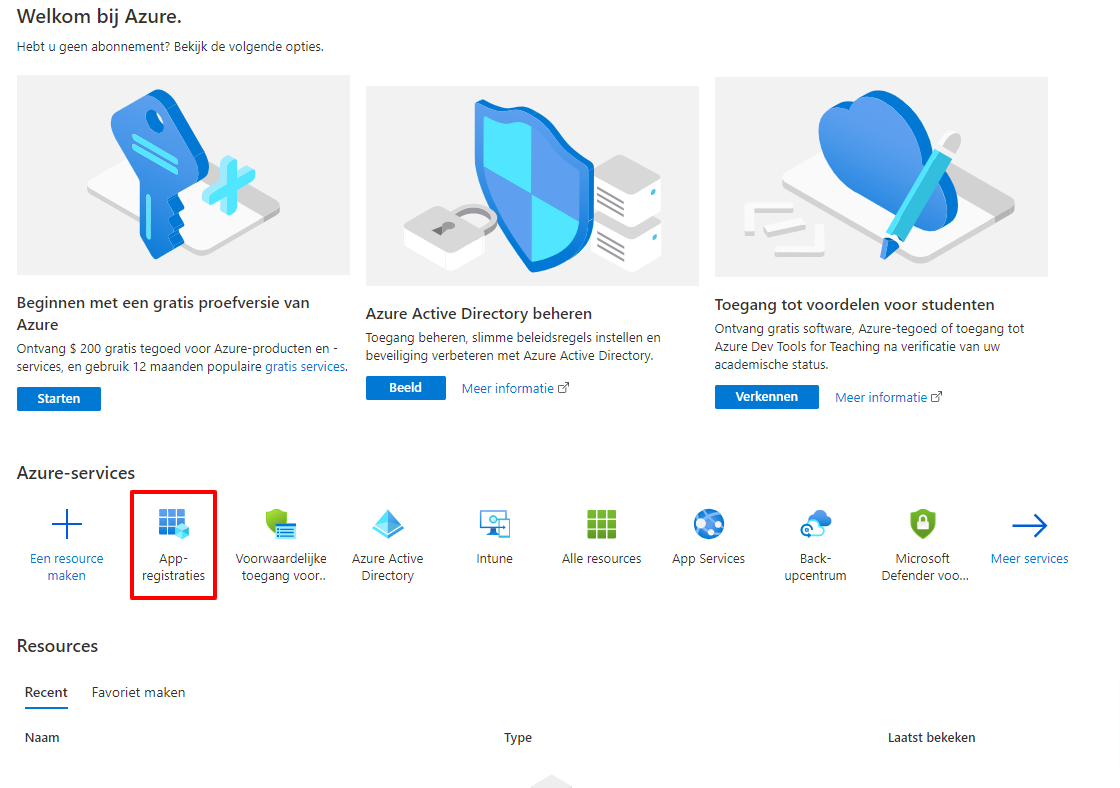
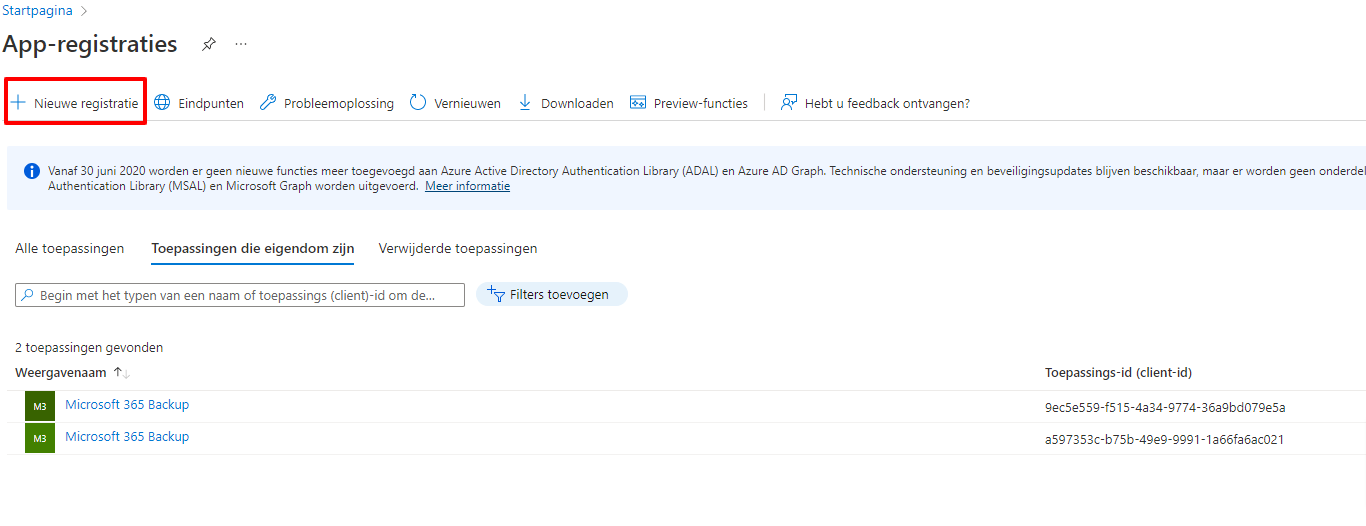
### 2. Navigeer naar App-registraties en klik op Nieuwe registratie

<figure><img src="https://554473028-files.gitbook.io/~/files/v0/b/gitbook-x-prod.appspot.com/o/spaces%2FGr73dCEp7VK8XigZ4lH9%2Fuploads%2Fgit-blob-091ac4cb024c7f2c5db1a444ad414f5bd7fdd5d1%2Fprofiel-omgevingsbeheer-instellingen-omgevingsbeheer-03.png?alt=media" alt="App-registraties in het Azure-portaal"><figcaption><p>App-registraties in het Azure-portaal</p></figcaption></figure>

<figure><img src="https://554473028-files.gitbook.io/~/files/v0/b/gitbook-x-prod.appspot.com/o/spaces%2FGr73dCEp7VK8XigZ4lH9%2Fuploads%2Fgit-blob-a9b5e6cdf55c14ebb2d594206198fc45913a4ba6%2Fprofiel-omgevingsbeheer-instellingen-omgevingsbeheer-04.png?alt=media" alt="Nieuwe registratie"><figcaption><p>Nieuwe registratie</p></figcaption></figure>

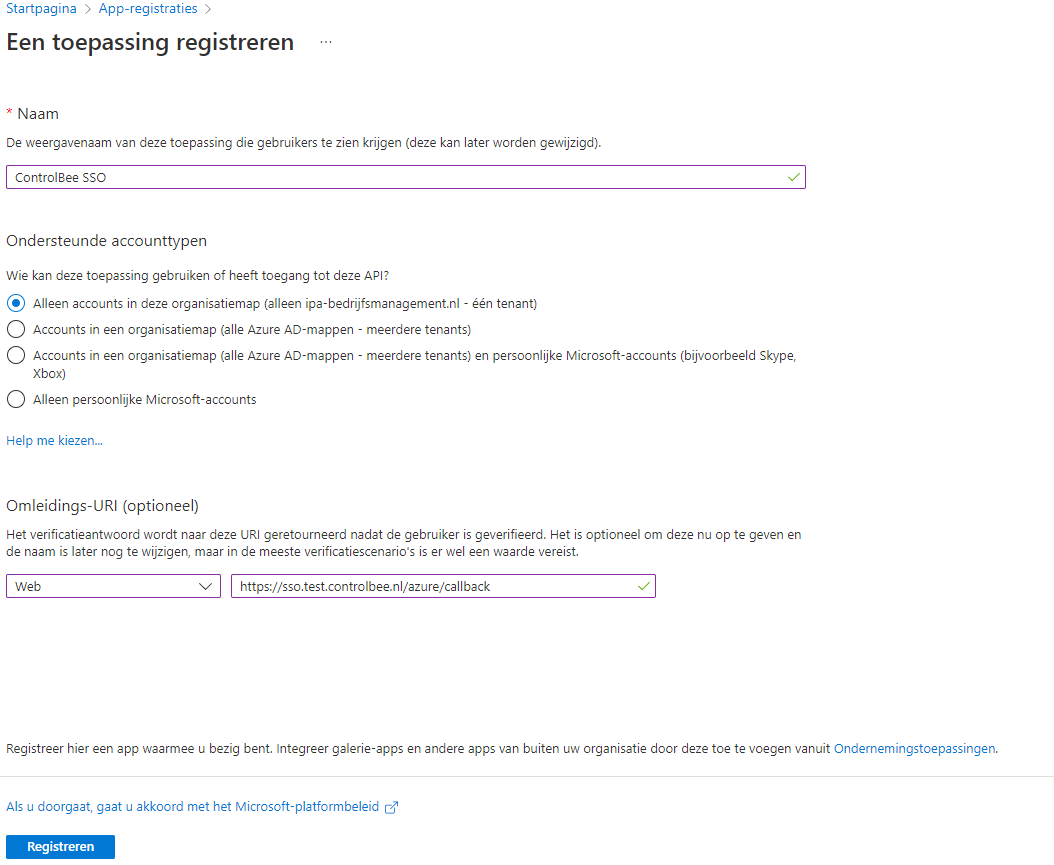
### 3. Registreer de toepassing

* Vul bij **Naam** een herkenbare naam in, bijvoorbeeld 'ControlBee SSO'.
* Kies bij **ondersteunde accounttypen** voor 'Alleen accounts in deze organisatiemap'.
* Kies bij **Omleidings-URL** voor Web en vul de URL van de ControlBee-omgeving in, gevolgd door `/azure/callback`.
* Klik op **Registreren**.

<figure><img src="https://554473028-files.gitbook.io/~/files/v0/b/gitbook-x-prod.appspot.com/o/spaces%2FGr73dCEp7VK8XigZ4lH9%2Fuploads%2Fgit-blob-bd903d0f2ae60a916d11215027816e4db1fcfa0f%2Fprofiel-omgevingsbeheer-instellingen-omgevingsbeheer-05.png?alt=media" alt="Het registratieformulier"><figcaption><p>Het registratieformulier</p></figcaption></figure>

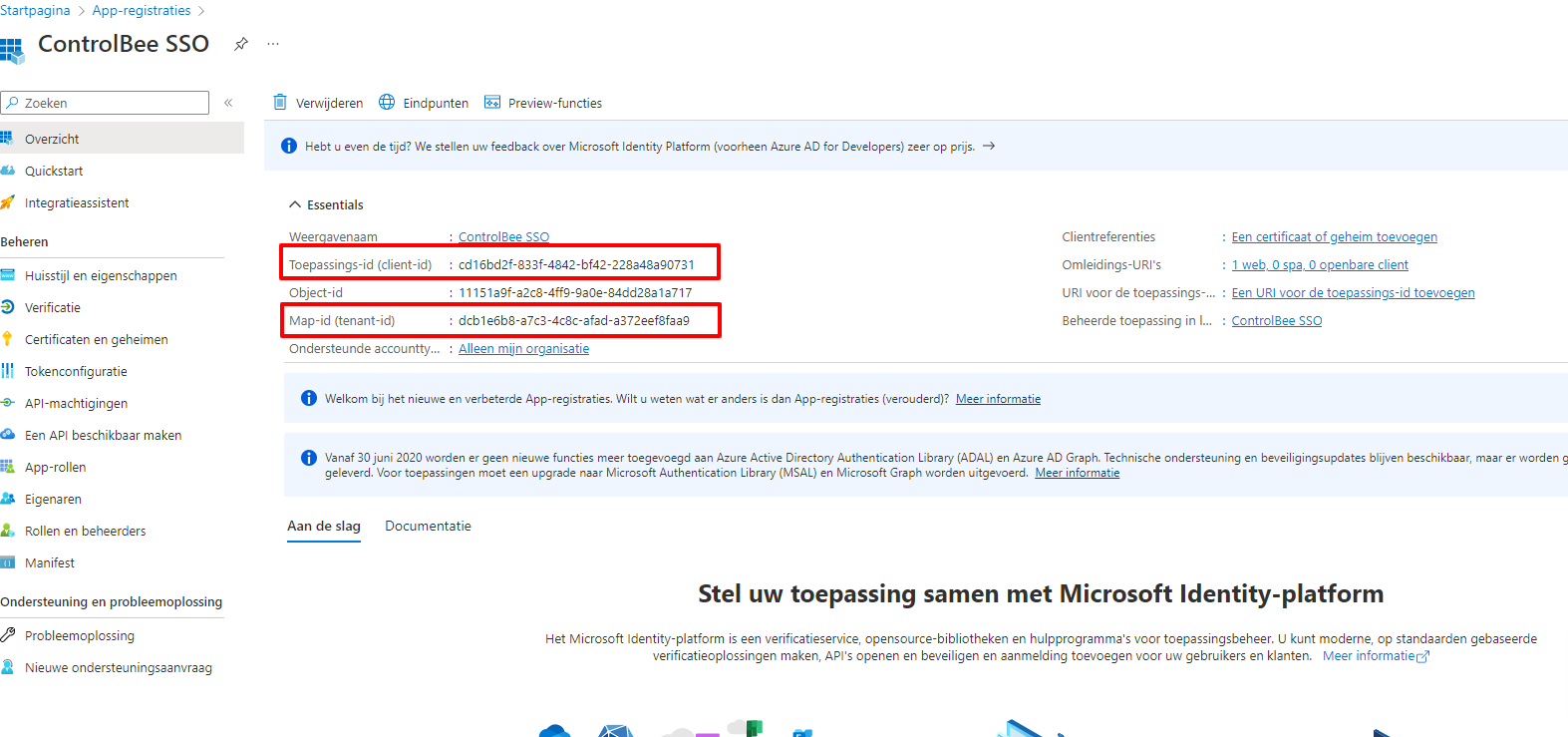
### 4. Kopieer de cliënt-id en tenant-id naar ControlBee

<figure><img src="https://554473028-files.gitbook.io/~/files/v0/b/gitbook-x-prod.appspot.com/o/spaces%2FGr73dCEp7VK8XigZ4lH9%2Fuploads%2Fgit-blob-e381b42ad33ce49ba663e057594a1bb7e4c47c0d%2Fprofiel-omgevingsbeheer-instellingen-omgevingsbeheer-06.png?alt=media" alt="De cliënt-id en tenant-id in Azure"><figcaption><p>De cliënt-id en tenant-id in Azure</p></figcaption></figure>

<figure><img src="https://554473028-files.gitbook.io/~/files/v0/b/gitbook-x-prod.appspot.com/o/spaces%2FGr73dCEp7VK8XigZ4lH9%2Fuploads%2Fgit-blob-10ae5bd8aa1eb91a901dd5ab27d4a1041cd0b371%2Fprofiel-omgevingsbeheer-instellingen-omgevingsbeheer-07.png?alt=media" alt="Overnemen in het formulier in ControlBee"><figcaption><p>Overnemen in het formulier in ControlBee</p></figcaption></figure>

<figure><img src="https://554473028-files.gitbook.io/~/files/v0/b/gitbook-x-prod.appspot.com/o/spaces%2FGr73dCEp7VK8XigZ4lH9%2Fuploads%2Fgit-blob-a4f16c34ad9a5be414318384cbffed5c66af1360%2Fprofiel-omgevingsbeheer-instellingen-omgevingsbeheer-08.png?alt=media" alt="Het ingevulde formulier"><figcaption><p>Het ingevulde formulier</p></figcaption></figure>

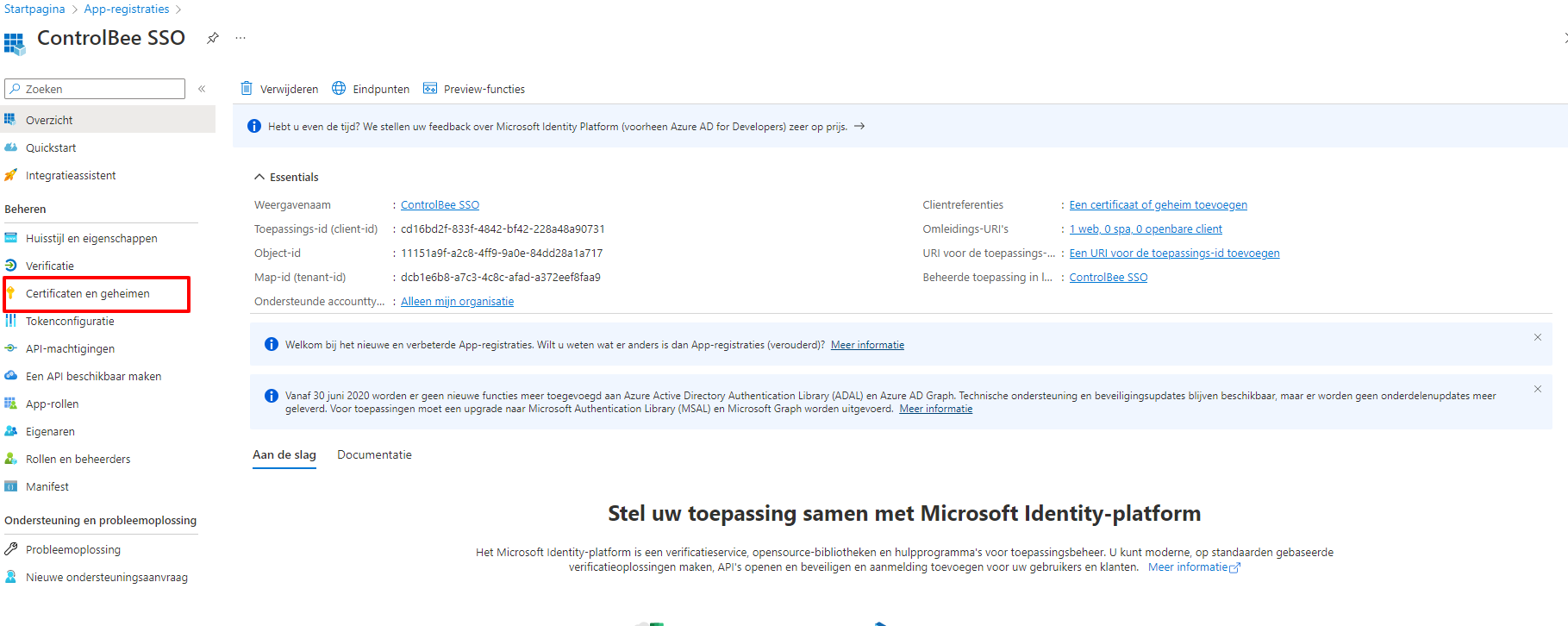
### 5. Navigeer naar Certificaten en geheimen en klik op Nieuw clientgeheim

<figure><img src="https://554473028-files.gitbook.io/~/files/v0/b/gitbook-x-prod.appspot.com/o/spaces%2FGr73dCEp7VK8XigZ4lH9%2Fuploads%2Fgit-blob-5e0a1f824a5ab98b3a49ef3fc5d400b19a494e16%2Fprofiel-omgevingsbeheer-instellingen-omgevingsbeheer-09.png?alt=media" alt="Certificaten en geheimen"><figcaption><p>Certificaten en geheimen</p></figcaption></figure>

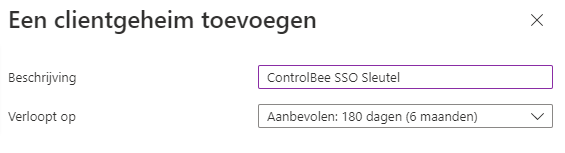
### 6. Voer een beschrijving in en kies de geldigheid van de sleutel

<figure><img src="https://554473028-files.gitbook.io/~/files/v0/b/gitbook-x-prod.appspot.com/o/spaces%2FGr73dCEp7VK8XigZ4lH9%2Fuploads%2Fgit-blob-93b8587d4e1c1e614fe972c188555e018ba58021%2Fprofiel-omgevingsbeheer-instellingen-omgevingsbeheer-10.png?alt=media" alt="Geldigheid van het clientgeheim"><figcaption><p>Geldigheid van het clientgeheim</p></figcaption></figure>

### 7. Kopieer de sleutel uit het veld Waarde

<figure><img src="https://554473028-files.gitbook.io/~/files/v0/b/gitbook-x-prod.appspot.com/o/spaces%2FGr73dCEp7VK8XigZ4lH9%2Fuploads%2Fgit-blob-ec36e5cf4c9c98fb4bea0d6e28273fb3fafc0f66%2Fprofiel-omgevingsbeheer-instellingen-omgevingsbeheer-11.png?alt=media" alt="Het veld Waarde"><figcaption><p>Het veld Waarde</p></figcaption></figure>

### 8. Plak de waarde in ControlBee en sla op

<figure><img src="https://554473028-files.gitbook.io/~/files/v0/b/gitbook-x-prod.appspot.com/o/spaces%2FGr73dCEp7VK8XigZ4lH9%2Fuploads%2Fgit-blob-b224c99f3a82608feb6c420fe320dd287cdd533f%2Fprofiel-omgevingsbeheer-instellingen-omgevingsbeheer-12.png?alt=media" alt="De sleutel opslaan in ControlBee"><figcaption><p>De sleutel opslaan in ControlBee</p></figcaption></figure>

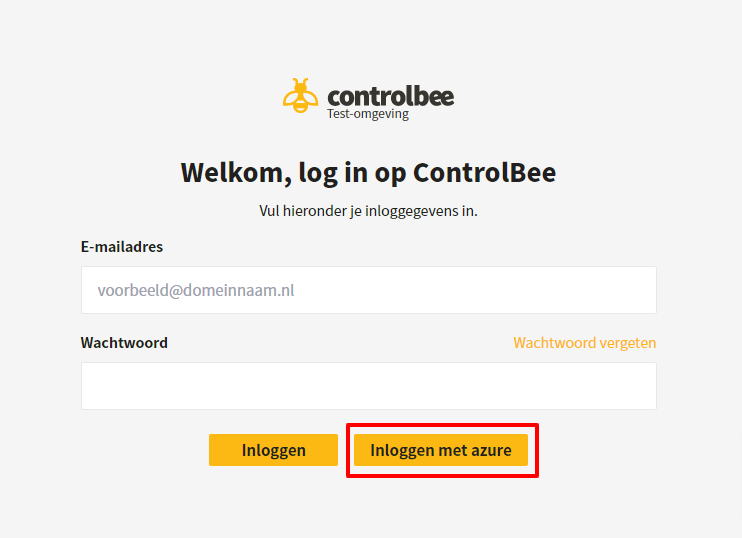
### 9. Log uit en kies op het inlogscherm voor Inloggen met Azure

E-mailadres en wachtwoord kunnen leeg blijven.

<figure><img src="https://554473028-files.gitbook.io/~/files/v0/b/gitbook-x-prod.appspot.com/o/spaces%2FGr73dCEp7VK8XigZ4lH9%2Fuploads%2Fgit-blob-411afeadd9ddb6f667cae3b14767fcb523b37c25%2Fprofiel-omgevingsbeheer-instellingen-omgevingsbeheer-13.png?alt=media" alt="Inloggen met Azure"><figcaption><p>Inloggen met Azure</p></figcaption></figure>

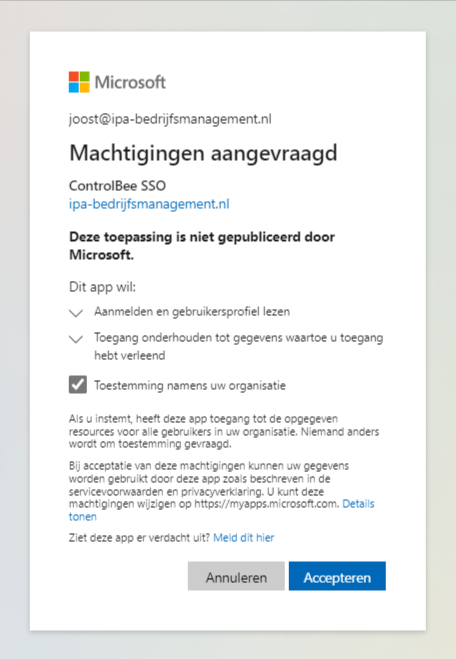
### 10. Accepteer de machtigingen

Bij de eerste keer inloggen via Azure moeten de machtigingen worden geaccepteerd. Daarna zou het inloggen moeten slagen.

<figure><img src="https://554473028-files.gitbook.io/~/files/v0/b/gitbook-x-prod.appspot.com/o/spaces%2FGr73dCEp7VK8XigZ4lH9%2Fuploads%2Fgit-blob-2092bb8adfa352b4ea47043d5d5d3385e574e089%2Fprofiel-omgevingsbeheer-instellingen-omgevingsbeheer-14.png?alt=media" alt="Het machtigingenscherm"><figcaption><p>Het machtigingenscherm</p></figcaption></figure>

<figure><img src="https://554473028-files.gitbook.io/~/files/v0/b/gitbook-x-prod.appspot.com/o/spaces%2FGr73dCEp7VK8XigZ4lH9%2Fuploads%2Fgit-blob-3fcf5379c1114331a0000c5f93af4f0fdfc60d01%2Fprofiel-omgevingsbeheer-instellingen-omgevingsbeheer-15.png?alt=media" alt="Succesvol ingelogd"><figcaption><p>Succesvol ingelogd</p></figcaption></figure>

{% hint style="warning" %}
De waarde van het clientgeheim is maar één keer zichtbaar. Is de sleutel verlopen, dan moet het stappenplan vanaf stap 5 opnieuw worden uitgevoerd.
{% endhint %}

{% hint style="info" %}
Alleen gebruikers met de rol omgevingsbeheerder kunnen daarna nog inloggen met gebruikersnaam en wachtwoord. Alle andere gebruikerstypen worden altijd naar Azure doorgestuurd, ook als ze een gebruikersnaam en wachtwoord invullen.
{% endhint %}


---

# Agent Instructions
This documentation is published with GitBook. GitBook is the documentation platform designed so that both humans and AI agents can read, navigate, and reason over technical content effectively. Learn more at gitbook.com.

## Querying This Documentation
If you need additional information that is not directly available in this page, you can query the documentation dynamically by asking a question.

Perform an HTTP GET request on the current page URL with the `ask` query parameter, and the optional `goal` query parameter:

```
GET https://docs.controlbee.nl/profiel/omgevingsbeheer/instellingen-omgevingsbeheer.md?ask=<question>&goal=<endgoal>
```

`ask` is the immediate question: it should be specific, self-contained, and written in natural language.
`goal` is optional and describes the broader end goal you are ultimately trying to accomplish on behalf of the user. GitBook uses it to tailor the answer towards what is most useful for that goal.

The response will contain a direct answer to the question and relevant excerpts and sources from the documentation.

Use this mechanism when the answer is not explicitly present in the current page, you need clarification or additional context, or you want to retrieve related documentation sections.