> For the complete documentation index, see [llms.txt](https://docs.controlbee.nl/llms.txt). Markdown versions of documentation pages are available by appending `.md` to page URLs; this page is available as [Markdown](https://docs.controlbee.nl/en/versiebeheer-en-publiceren.md).
# Version control and publishing
Draft, review, publish, and version table for version-controlled text fields
Several text fields in ControlBee have version control: the context description, the policy, and the process description. The operation is the same everywhere and is described here once.
## Working in draft
As soon as you make an edit, a blue bar appears around the text field to indicate that your changes are in draft. The blue bar gives you the option to switch between different versions:
* **Draft** — the draft version you are working on
* **Current version** — the last published copy before you started the draft
* **Changes** — the changes in your draft version compared to the previous version, with additions in green and deletions in red
{% hint style="warning" %}
As long as the blue bar is visible, your changes have not yet been processed into a version. So they are also not yet visible in the version table and cannot be exported.
{% endhint %}
## Starting a publication
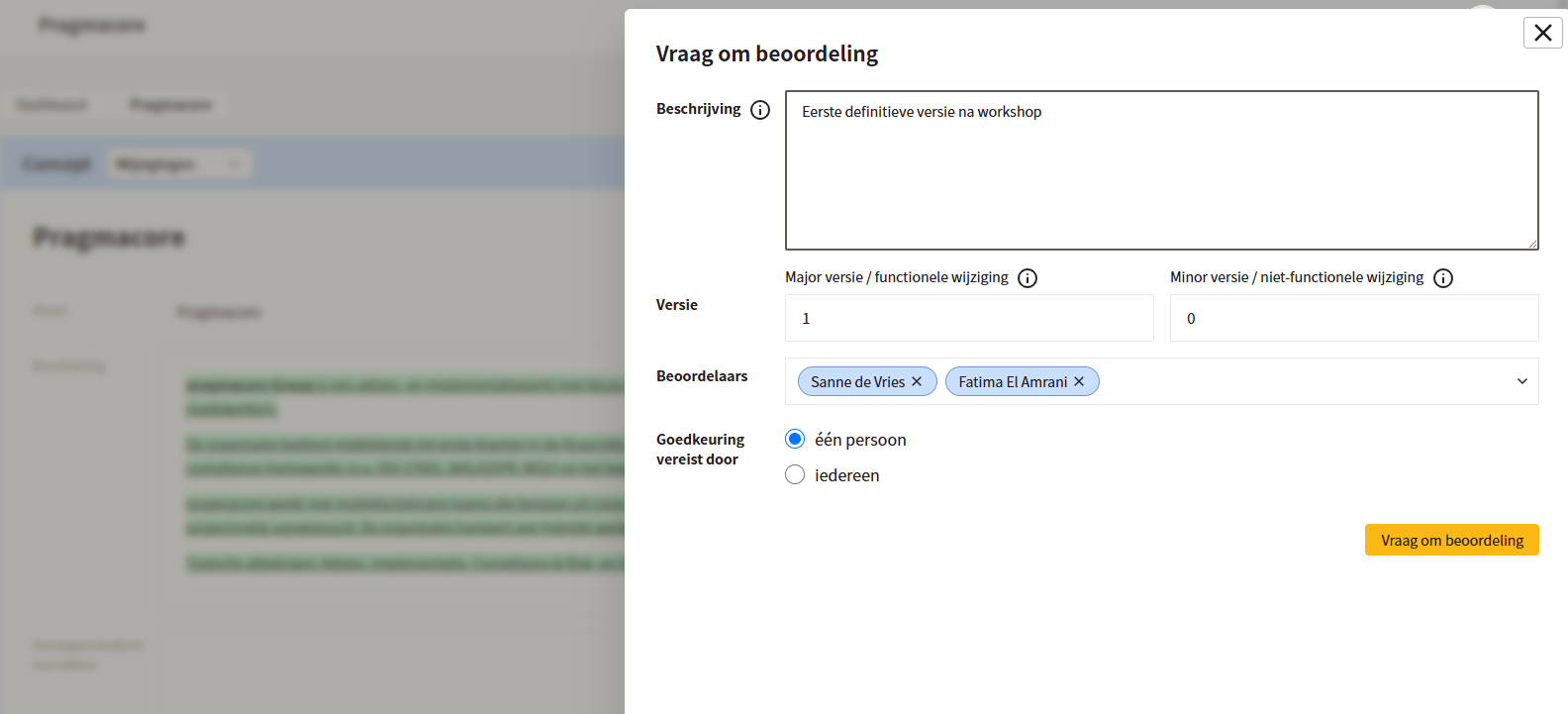
When you are ready to publish the draft so that it can also be exported, click the yellow 'Start publication' button. After that, you will get a form with the following options:
* **Description** — enter a short description of your change here
* **Version** — here we distinguish between two types of version updates:
* **Major version / functional** — a change with functional impact; the publication requires approval from one or more people, usually the owner
* **Minor version / non-functional** — a small change without functional impact on the organization; the publication does not require approval
* **Reviewers** (major version only) — for documents with an owner, the owner is already set here by default. You can also manually add users who give approval.
* **Approval required by** (only with multiple reviewers) — here you indicate whether approval from one or from multiple people is required.
As soon as 'Request review' is clicked, the review is started and the configured reviewers receive an email about the approval request.
## Manage review
As long as a review is open, the following options are available:
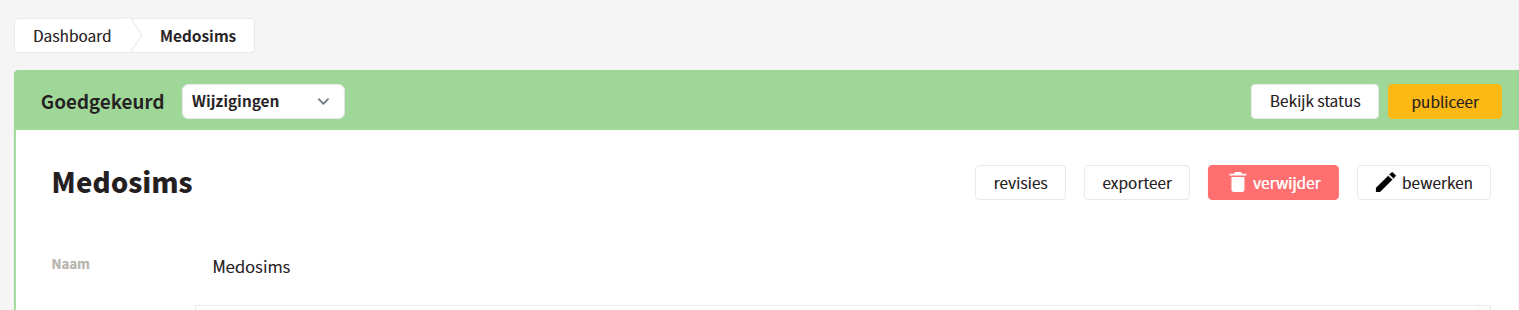
* **View status → Send reminder** — available to the user who started the review; sends a reminder email to the reviewers
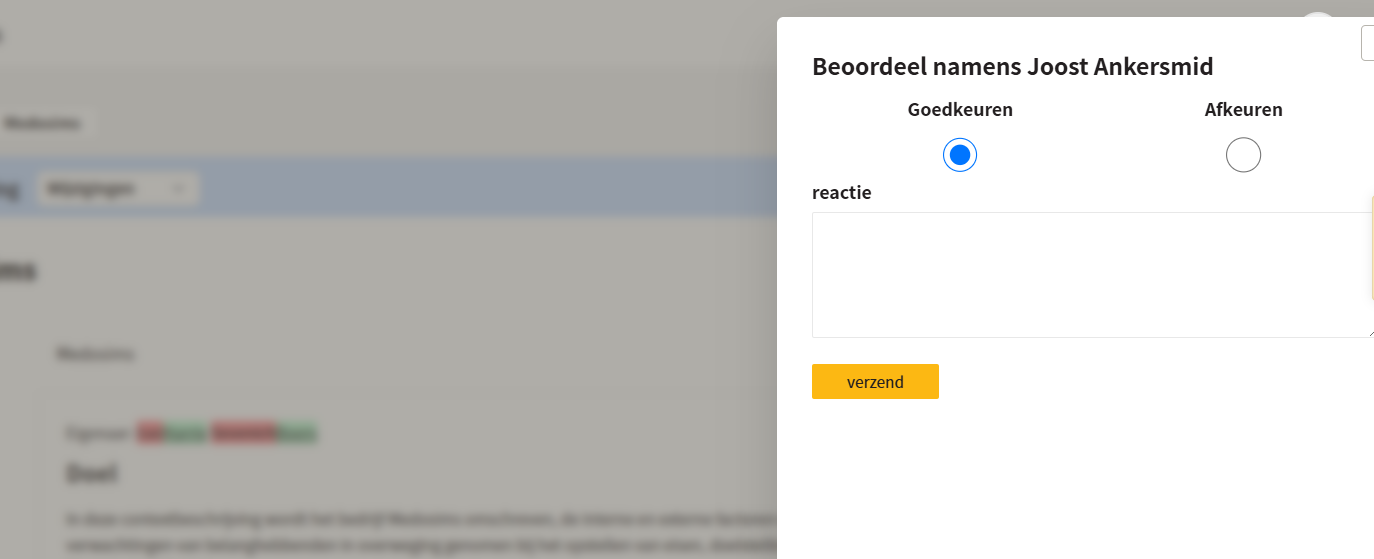
* **View status → Review on behalf of** — only available to business administrators and environment administrators; this completes the review 'on behalf of' the reviewer
* **Review** — only available to users who are set as reviewers. The draft can be approved or rejected with an explanation.
## Publication
As soon as all reviewers have approved the document, a green bar appears and the document can be published with the yellow button. The version is added to the document's version table. The document can be published in three ways:
* as an MS Word document
* as a PDF
* in Markdown via our API
After publishing, the colored bar disappears and the process starts again with the next change.
## Version table
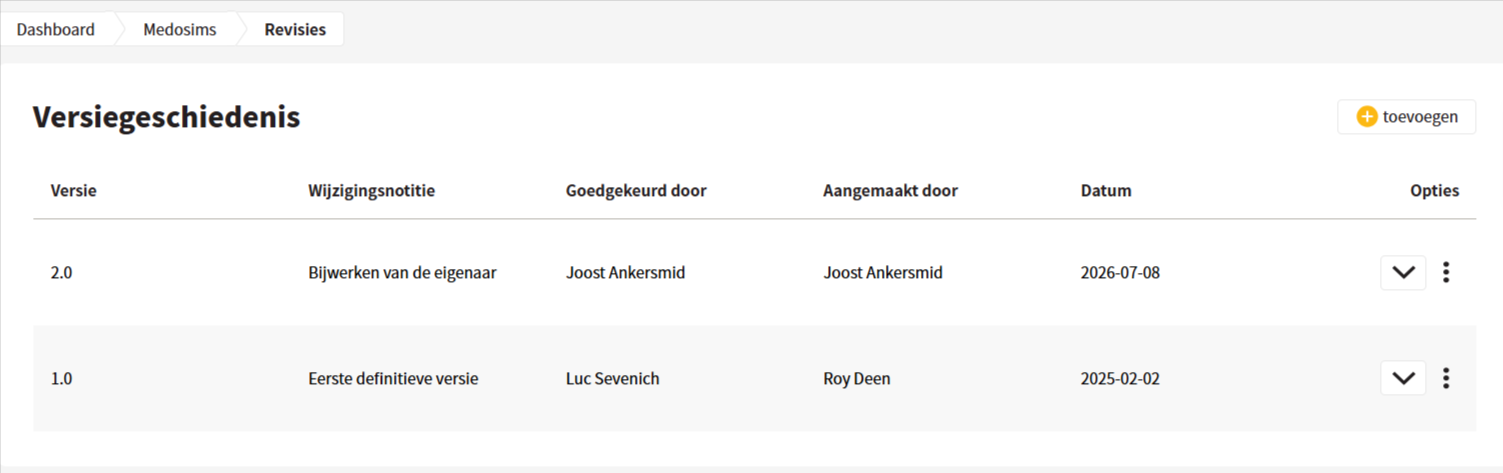
The version history is automatically updated with the published versions for functions with version control. However, it may be necessary to edit the version table manually, for example because an error was introduced in a publication or because existing documents are being entered in ControlBee. By clicking the 'revisions' button, the version history opens. In this overview, versions can be added manually and existing versions can be edited and deleted.
{% hint style="warning" %}
There must always be at least one version. So it is not possible to completely empty the version history.
{% endhint %}
---
# Agent Instructions
This documentation is published with GitBook. GitBook is the documentation platform designed so that both humans and AI agents can read, navigate, and reason over technical content effectively. Learn more at gitbook.com.
## Querying This Documentation
If you need additional information that is not directly available in this page, you can query the documentation dynamically by asking a question.
Perform an HTTP GET request on the current page URL with the `ask` query parameter, and the optional `goal` query parameter:
```
GET https://docs.controlbee.nl/en/versiebeheer-en-publiceren.md?ask=&goal=
```
`ask` is the immediate question: it should be specific, self-contained, and written in natural language.
`goal` is optional and describes the broader end goal you are ultimately trying to accomplish on behalf of the user. GitBook uses it to tailor the answer towards what is most useful for that goal.
The response will contain a direct answer to the question and relevant excerpts and sources from the documentation.
Use this mechanism when the answer is not explicitly present in the current page, you need clarification or additional context, or you want to retrieve related documentation sections.