> For the complete documentation index, see [llms.txt](https://docs.controlbee.nl/llms.txt). Markdown versions of documentation pages are available by appending `.md` to page URLs; this page is available as [Markdown](https://docs.controlbee.nl/en/profiel/omgevingsbeheer/instellingen-omgevingsbeheer.md).

# Environment management settings

Set up two-factor authentication and Single Sign-On via Microsoft Azure

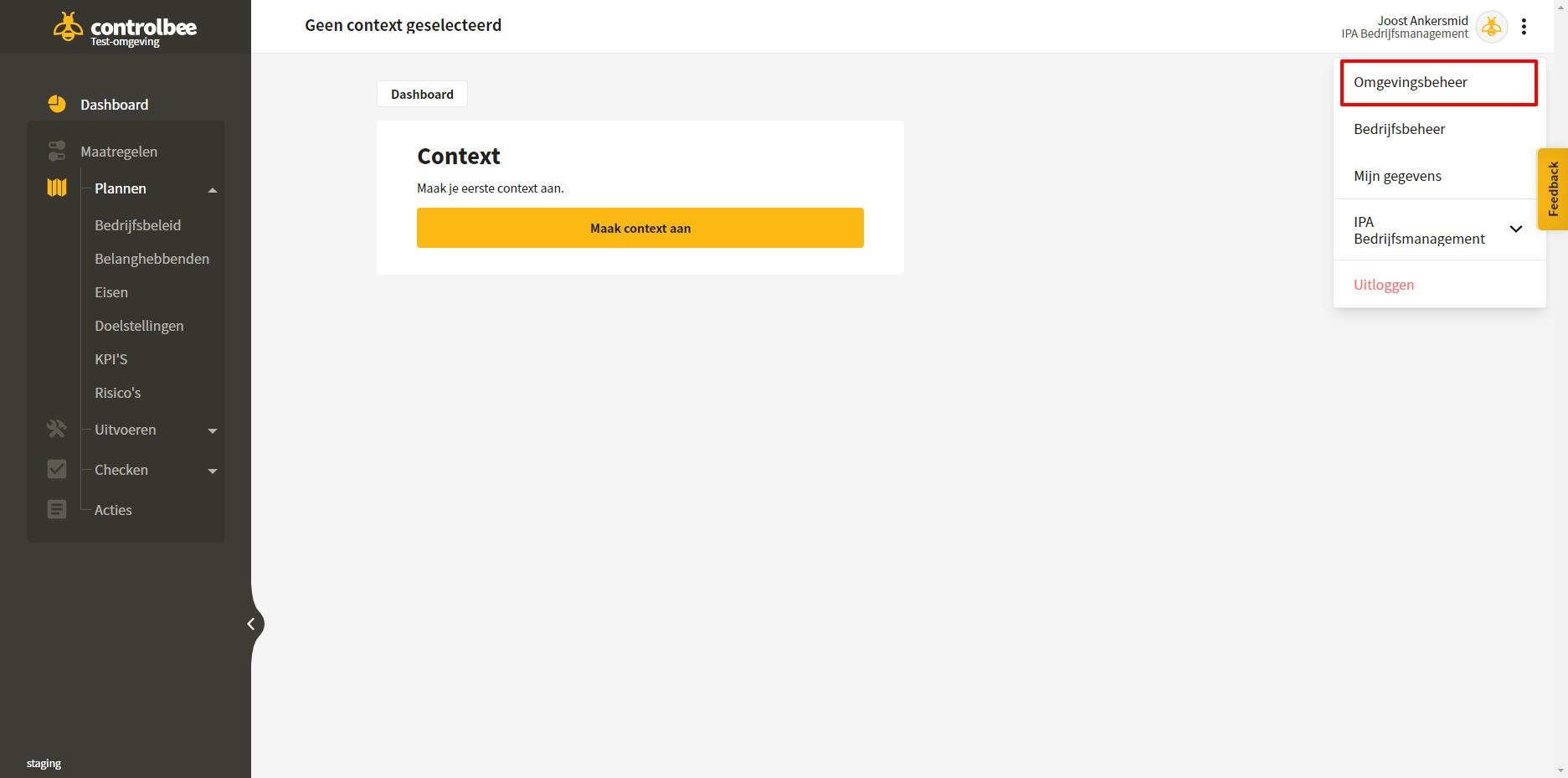
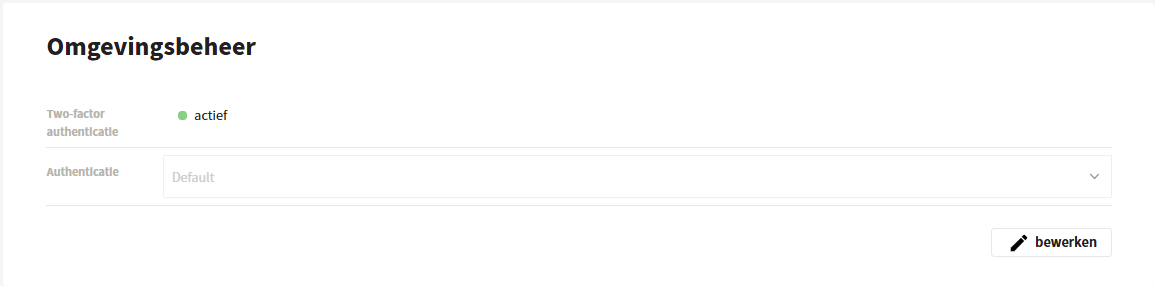
In environment management, two-factor authentication can be configured, and Single Sign-On can be linked via Microsoft Azure.

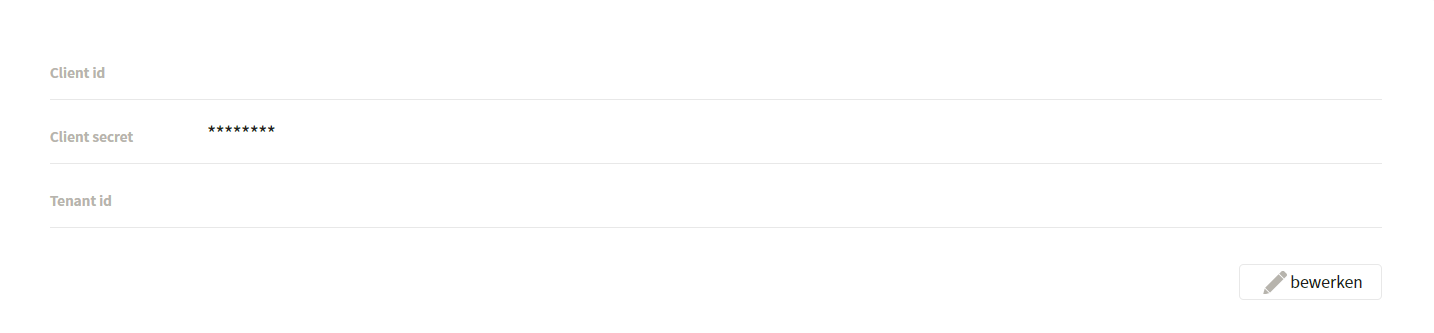
<figure><img src="https://3156569376-files.gitbook.io/~/files/v0/b/gitbook-x-prod.appspot.com/o/spaces%2FGr73dCEp7VK8XigZ4lH9%2Fuploads%2Fgit-blob-8d1125bb07f03f07b7a263e67ea5922c79a449c1%2Fprofiel-omgevingsbeheer-instellingen-omgevingsbeheer-01.png?alt=media" alt="Het scherm Omgevingsbeheer"><figcaption><p>The Environment Management screen</p></figcaption></figure>

## Set up Single Sign-On

To manage these settings, you must have the environment manager role in ControlBee. In addition, an administrator of the Microsoft Azure environment of the relevant organization must be available.

The Environment Management page contains three fields:

* **Client ID** — also called application ID in Azure. The unique code by which ControlBee is identified within the Microsoft environment.
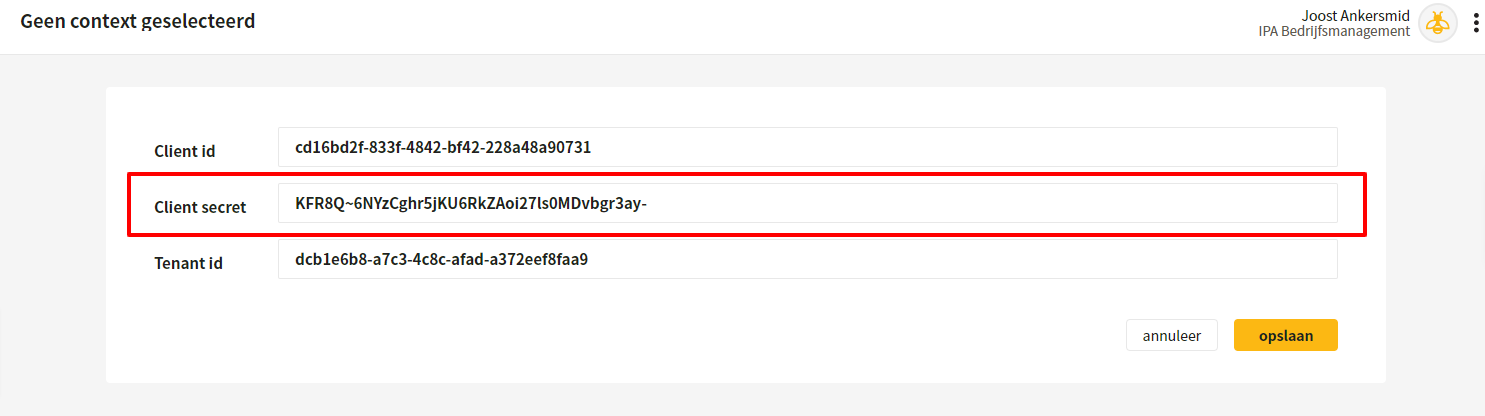
* **Client secret** — the key (the password) that ControlBee needs to connect to the Microsoft environment.
* **Tenant ID** — the unique code by which ControlBee finds the relevant Microsoft environment.

<figure><img src="https://3156569376-files.gitbook.io/~/files/v0/b/gitbook-x-prod.appspot.com/o/spaces%2FGr73dCEp7VK8XigZ4lH9%2Fuploads%2Fgit-blob-291c9302b174e3c7f2c3a967b27efc01f77db8f8%2Fprofiel-omgevingsbeheer-instellingen-omgevingsbeheer-02.png?alt=media" alt="De drie velden voor de Azure-koppeling"><figcaption><p>The three fields for the Azure connection</p></figcaption></figure>

## Step-by-step plan

### 1. Go to the organization's Azure portal

Via [portal.azure.com](https://portal.azure.com). This must be done by someone with administrator rights in the Microsoft environment.

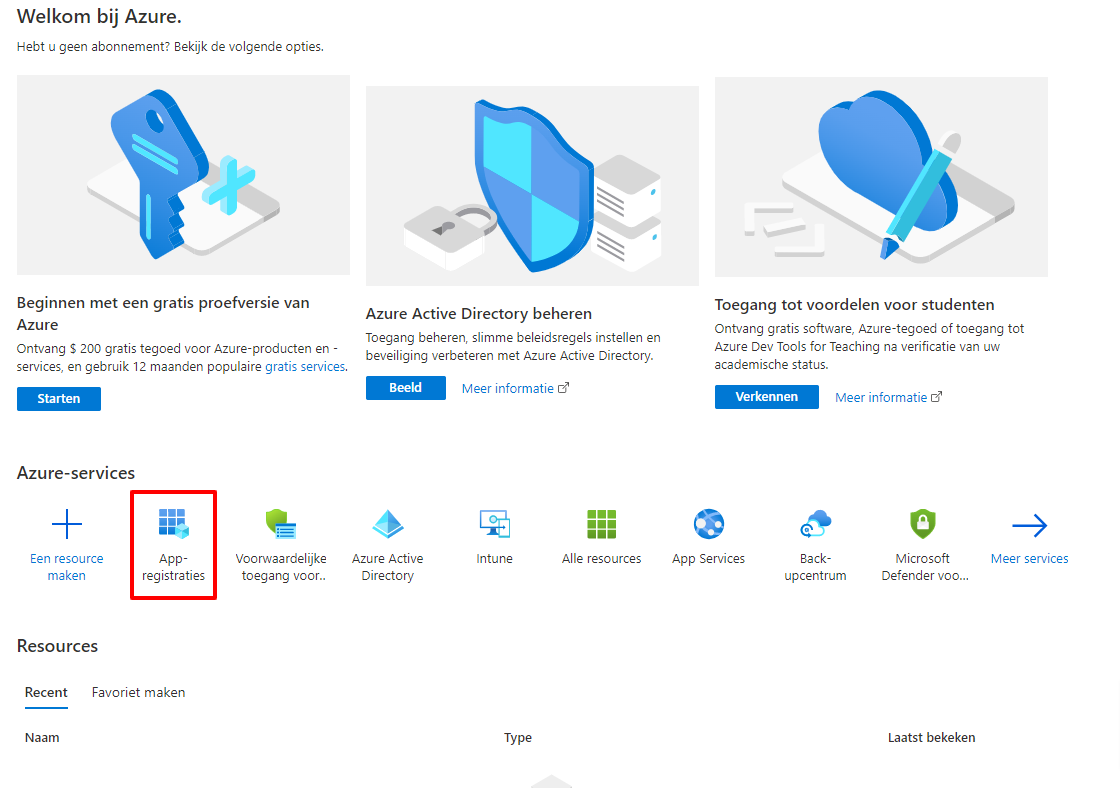
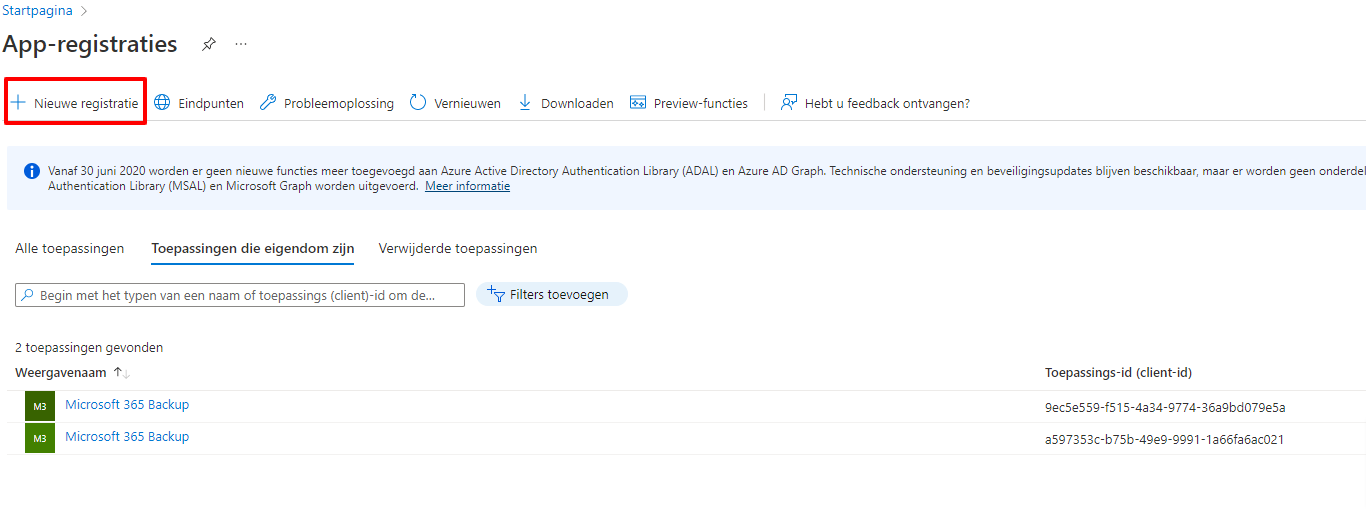
### 2. Navigate to App registrations and click New registration

<figure><img src="https://3156569376-files.gitbook.io/~/files/v0/b/gitbook-x-prod.appspot.com/o/spaces%2FGr73dCEp7VK8XigZ4lH9%2Fuploads%2Fgit-blob-091ac4cb024c7f2c5db1a444ad414f5bd7fdd5d1%2Fprofiel-omgevingsbeheer-instellingen-omgevingsbeheer-03.png?alt=media" alt="App-registraties in het Azure-portaal"><figcaption><p>App registrations in the Azure portal</p></figcaption></figure>

<figure><img src="https://3156569376-files.gitbook.io/~/files/v0/b/gitbook-x-prod.appspot.com/o/spaces%2FGr73dCEp7VK8XigZ4lH9%2Fuploads%2Fgit-blob-a9b5e6cdf55c14ebb2d594206198fc45913a4ba6%2Fprofiel-omgevingsbeheer-instellingen-omgevingsbeheer-04.png?alt=media" alt="Nieuwe registratie"><figcaption><p>New registration</p></figcaption></figure>

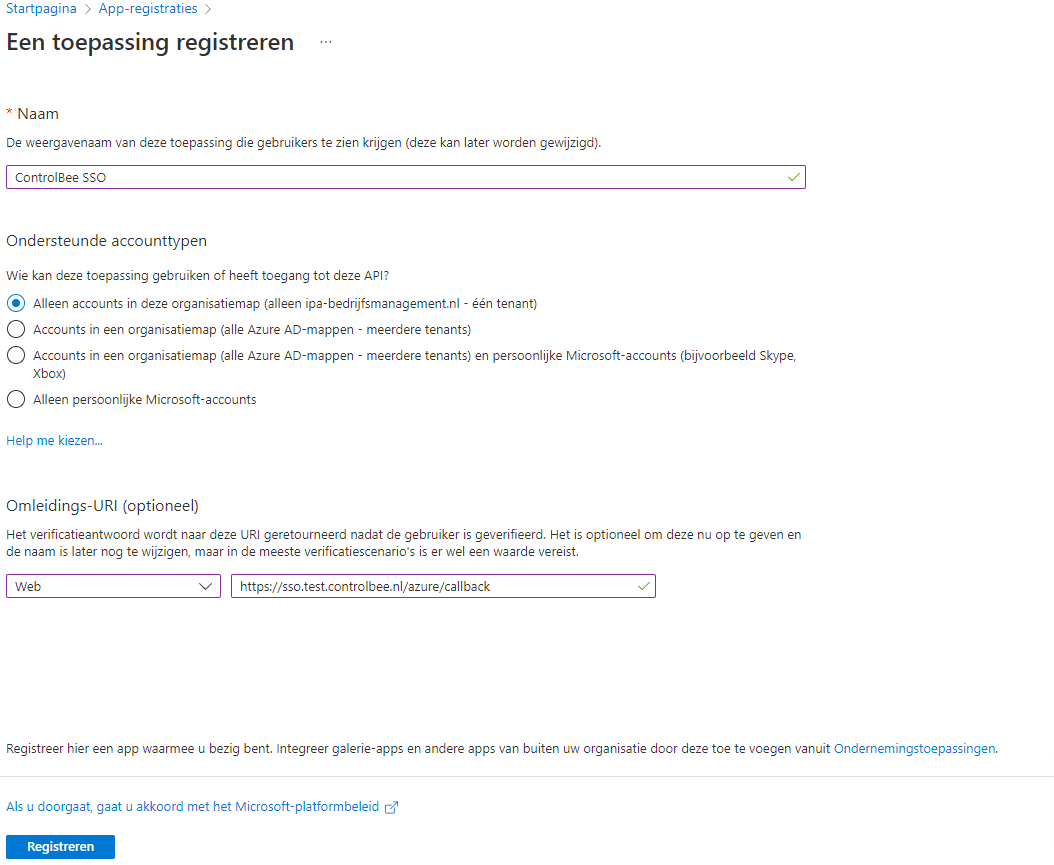
### 3. Register the application

* Enter **Name** a recognizable name, for example 'ControlBee SSO'.
* Choose **supported account types** for 'Accounts in this organizational directory only'.
* Choose **Redirect URL** for Web and enter the URL of the ControlBee environment, followed by `/azure/callback`.
* Click **Register**.

<figure><img src="https://3156569376-files.gitbook.io/~/files/v0/b/gitbook-x-prod.appspot.com/o/spaces%2FGr73dCEp7VK8XigZ4lH9%2Fuploads%2Fgit-blob-bd903d0f2ae60a916d11215027816e4db1fcfa0f%2Fprofiel-omgevingsbeheer-instellingen-omgevingsbeheer-05.png?alt=media" alt="Het registratieformulier"><figcaption><p>The registration form</p></figcaption></figure>

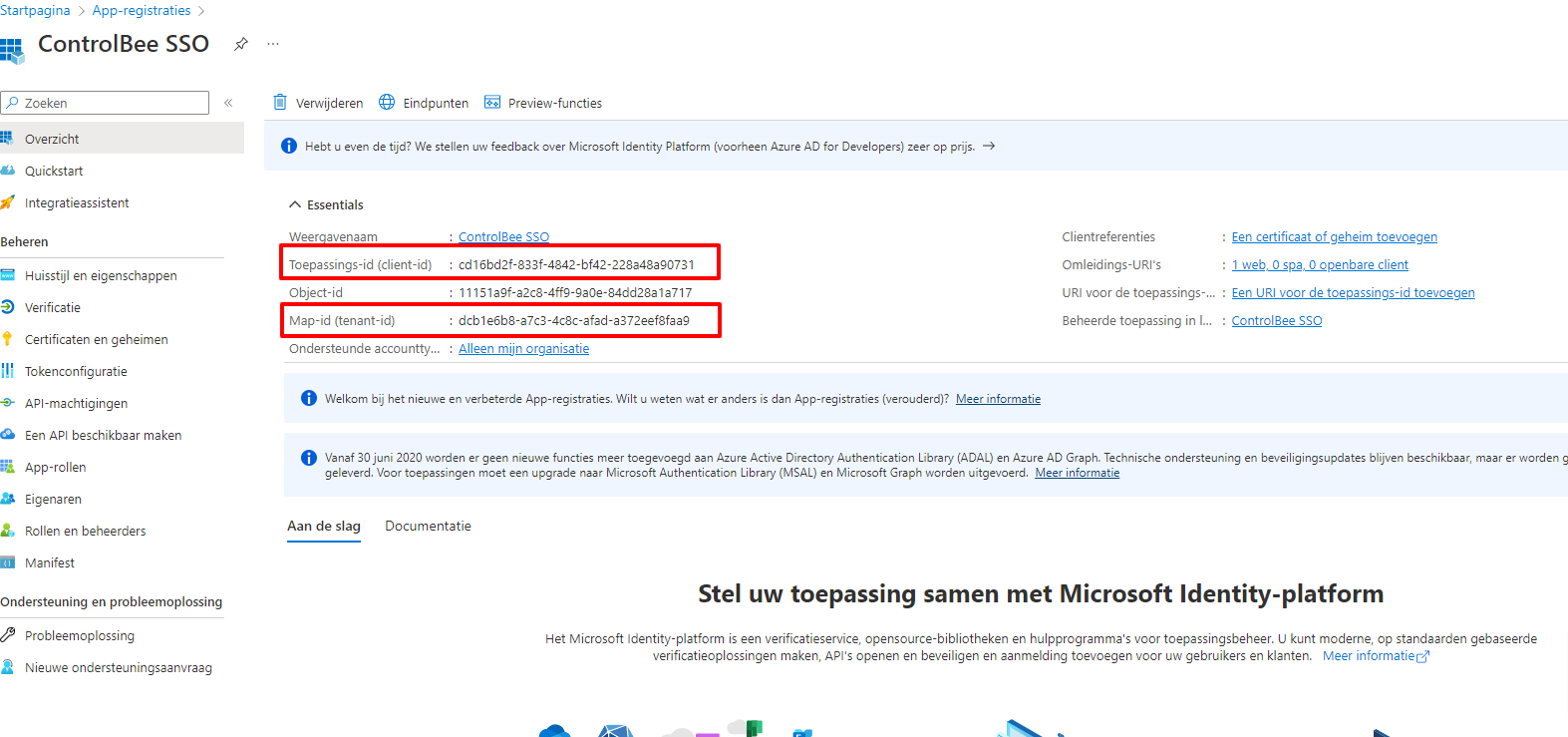
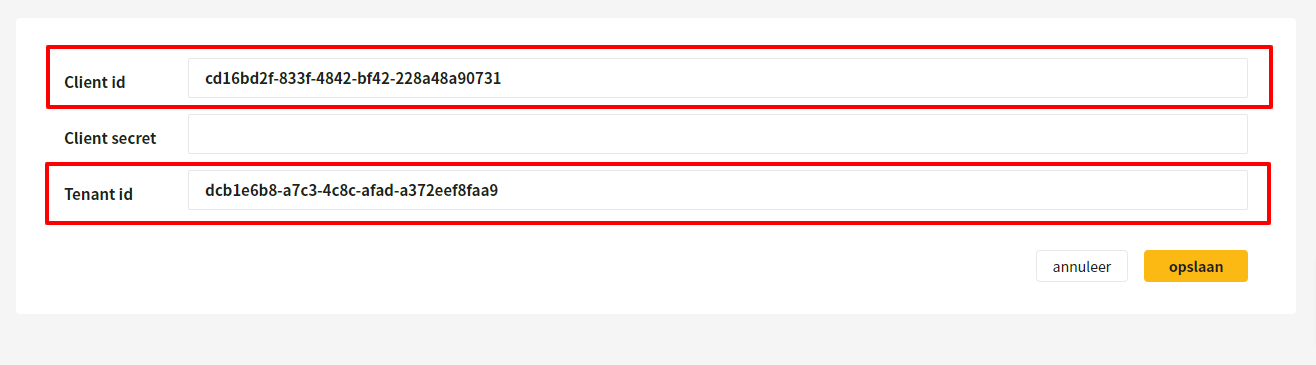
### 4. Copy the client ID and tenant ID to ControlBee

<figure><img src="https://3156569376-files.gitbook.io/~/files/v0/b/gitbook-x-prod.appspot.com/o/spaces%2FGr73dCEp7VK8XigZ4lH9%2Fuploads%2Fgit-blob-e381b42ad33ce49ba663e057594a1bb7e4c47c0d%2Fprofiel-omgevingsbeheer-instellingen-omgevingsbeheer-06.png?alt=media" alt="De cliënt-id en tenant-id in Azure"><figcaption><p>The client ID and tenant ID in Azure</p></figcaption></figure>

<figure><img src="https://3156569376-files.gitbook.io/~/files/v0/b/gitbook-x-prod.appspot.com/o/spaces%2FGr73dCEp7VK8XigZ4lH9%2Fuploads%2Fgit-blob-10ae5bd8aa1eb91a901dd5ab27d4a1041cd0b371%2Fprofiel-omgevingsbeheer-instellingen-omgevingsbeheer-07.png?alt=media" alt="Overnemen in het formulier in ControlBee"><figcaption><p>Transfer to the form in ControlBee</p></figcaption></figure>

<figure><img src="https://3156569376-files.gitbook.io/~/files/v0/b/gitbook-x-prod.appspot.com/o/spaces%2FGr73dCEp7VK8XigZ4lH9%2Fuploads%2Fgit-blob-a4f16c34ad9a5be414318384cbffed5c66af1360%2Fprofiel-omgevingsbeheer-instellingen-omgevingsbeheer-08.png?alt=media" alt="Het ingevulde formulier"><figcaption><p>The completed form</p></figcaption></figure>

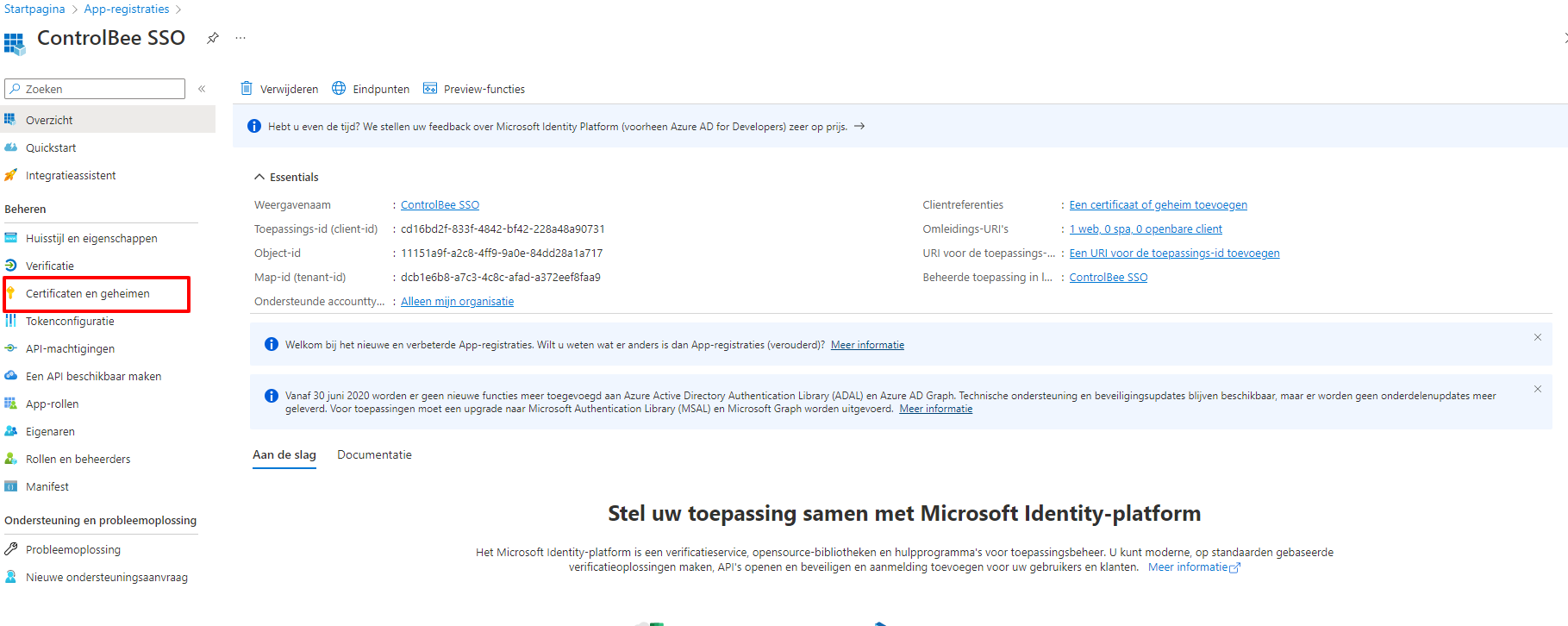
### 5. Navigate to Certificates and secrets and click New client secret

<figure><img src="https://3156569376-files.gitbook.io/~/files/v0/b/gitbook-x-prod.appspot.com/o/spaces%2FGr73dCEp7VK8XigZ4lH9%2Fuploads%2Fgit-blob-5e0a1f824a5ab98b3a49ef3fc5d400b19a494e16%2Fprofiel-omgevingsbeheer-instellingen-omgevingsbeheer-09.png?alt=media" alt="Certificaten en geheimen"><figcaption><p>Certificates and secrets</p></figcaption></figure>

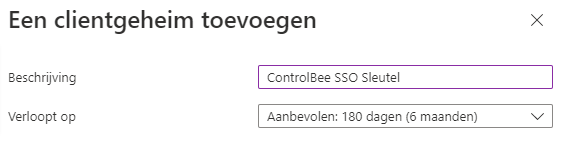
### 6. Enter a description and choose the key validity period

<figure><img src="https://3156569376-files.gitbook.io/~/files/v0/b/gitbook-x-prod.appspot.com/o/spaces%2FGr73dCEp7VK8XigZ4lH9%2Fuploads%2Fgit-blob-93b8587d4e1c1e614fe972c188555e018ba58021%2Fprofiel-omgevingsbeheer-instellingen-omgevingsbeheer-10.png?alt=media" alt="Geldigheid van het clientgeheim"><figcaption><p>Client secret validity period</p></figcaption></figure>

### 7. Copy the key from the Value field

<figure><img src="https://3156569376-files.gitbook.io/~/files/v0/b/gitbook-x-prod.appspot.com/o/spaces%2FGr73dCEp7VK8XigZ4lH9%2Fuploads%2Fgit-blob-ec36e5cf4c9c98fb4bea0d6e28273fb3fafc0f66%2Fprofiel-omgevingsbeheer-instellingen-omgevingsbeheer-11.png?alt=media" alt="Het veld Waarde"><figcaption><p>The Value field</p></figcaption></figure>

### 8. Paste the value in ControlBee and save

<figure><img src="https://3156569376-files.gitbook.io/~/files/v0/b/gitbook-x-prod.appspot.com/o/spaces%2FGr73dCEp7VK8XigZ4lH9%2Fuploads%2Fgit-blob-b224c99f3a82608feb6c420fe320dd287cdd533f%2Fprofiel-omgevingsbeheer-instellingen-omgevingsbeheer-12.png?alt=media" alt="De sleutel opslaan in ControlBee"><figcaption><p>Saving the key in ControlBee</p></figcaption></figure>

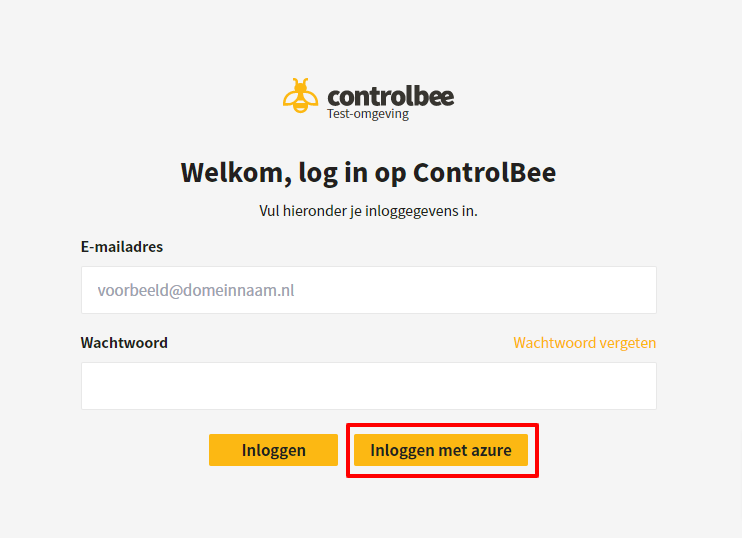
### 9. Log out and on the login screen choose Log in with Azure

Email address and password can be left blank.

<figure><img src="https://3156569376-files.gitbook.io/~/files/v0/b/gitbook-x-prod.appspot.com/o/spaces%2FGr73dCEp7VK8XigZ4lH9%2Fuploads%2Fgit-blob-411afeadd9ddb6f667cae3b14767fcb523b37c25%2Fprofiel-omgevingsbeheer-instellingen-omgevingsbeheer-13.png?alt=media" alt="Inloggen met Azure"><figcaption><p>Log in with Azure</p></figcaption></figure>

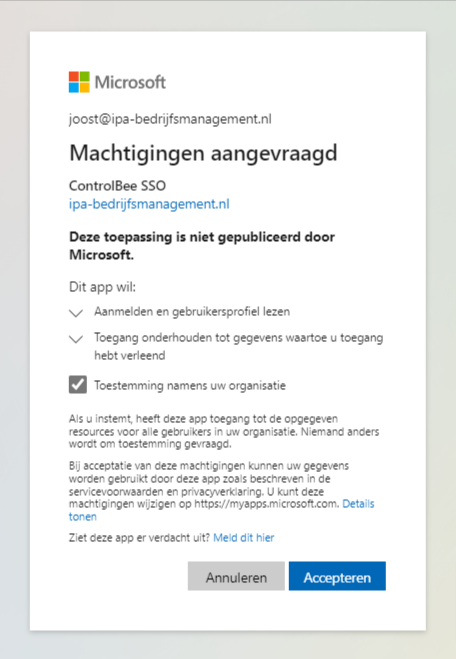
### 10. Accept the permissions

The first time you log in via Azure, the permissions must be accepted. After that, logging in should succeed.

<figure><img src="https://3156569376-files.gitbook.io/~/files/v0/b/gitbook-x-prod.appspot.com/o/spaces%2FGr73dCEp7VK8XigZ4lH9%2Fuploads%2Fgit-blob-2092bb8adfa352b4ea47043d5d5d3385e574e089%2Fprofiel-omgevingsbeheer-instellingen-omgevingsbeheer-14.png?alt=media" alt="Het machtigingenscherm"><figcaption><p>The permissions screen</p></figcaption></figure>

<figure><img src="https://3156569376-files.gitbook.io/~/files/v0/b/gitbook-x-prod.appspot.com/o/spaces%2FGr73dCEp7VK8XigZ4lH9%2Fuploads%2Fgit-blob-3fcf5379c1114331a0000c5f93af4f0fdfc60d01%2Fprofiel-omgevingsbeheer-instellingen-omgevingsbeheer-15.png?alt=media" alt="Succesvol ingelogd"><figcaption><p>Successfully logged in</p></figcaption></figure>

{% hint style="warning" %}
The value of the client secret is only visible once. If the key has expired, the step-by-step plan must be repeated from step 5 onwards.
{% endhint %}

{% hint style="info" %}
Only users with the environment manager role can then still log in with a username and password. All other user types are always redirected to Azure, even if they enter a username and password.
{% endhint %}


---

# Agent Instructions
This documentation is published with GitBook. GitBook is the documentation platform designed so that both humans and AI agents can read, navigate, and reason over technical content effectively. Learn more at gitbook.com.

## Querying This Documentation
If you need additional information that is not directly available in this page, you can query the documentation dynamically by asking a question.

Perform an HTTP GET request on the current page URL with the `ask` query parameter, and the optional `goal` query parameter:

```
GET https://docs.controlbee.nl/en/profiel/omgevingsbeheer/instellingen-omgevingsbeheer.md?ask=<question>&goal=<endgoal>
```

`ask` is the immediate question: it should be specific, self-contained, and written in natural language.
`goal` is optional and describes the broader end goal you are ultimately trying to accomplish on behalf of the user. GitBook uses it to tailor the answer towards what is most useful for that goal.

The response will contain a direct answer to the question and relevant excerpts and sources from the documentation.

Use this mechanism when the answer is not explicitly present in the current page, you need clarification or additional context, or you want to retrieve related documentation sections.