> For the complete documentation index, see [llms.txt](https://docs.controlbee.nl/llms.txt). Markdown versions of documentation pages are available by appending `.md` to page URLs; this page is available as [Markdown](https://docs.controlbee.nl/de/profiel/omgevingsbeheer/instellingen-omgevingsbeheer.md).

# Einstellungen zur Umgebungsverwaltung

Zwei-Faktor-Authentifizierung und Single Sign-On über Microsoft Azure einrichten

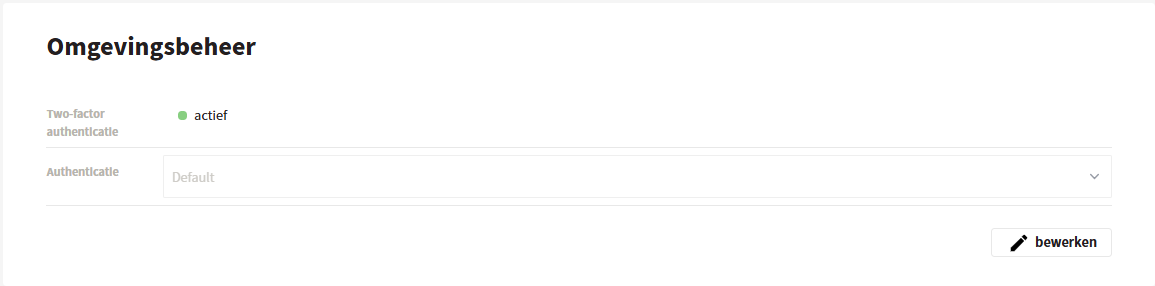
In der Umgebungsverwaltung kann eine Zwei-Faktor-Authentifizierung eingerichtet werden, und Single Sign-On kann über Microsoft Azure angebunden werden.

<figure><img src="https://2864415621-files.gitbook.io/~/files/v0/b/gitbook-x-prod.appspot.com/o/spaces%2FGr73dCEp7VK8XigZ4lH9%2Fuploads%2Fgit-blob-8d1125bb07f03f07b7a263e67ea5922c79a449c1%2Fprofiel-omgevingsbeheer-instellingen-omgevingsbeheer-01.png?alt=media" alt="Het scherm Omgevingsbeheer"><figcaption><p>Der Bildschirm Umgebungsverwaltung</p></figcaption></figure>

## Single Sign-On einrichten

Um diese Einstellungen verwalten zu können, musst du in ControlBee die Rolle des Umgebungsadministrators haben. Außerdem muss ein Administrator der Microsoft-Azure-Umgebung der betreffenden Organisation verfügbar sein.

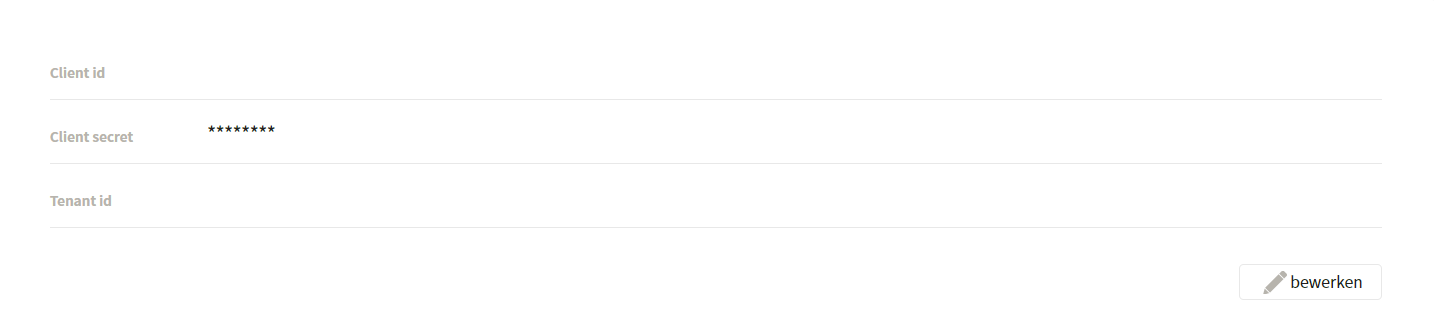
Auf der Seite Umgebungsverwaltung gibt es drei Felder:

* **Client-ID** — innerhalb von Azure auch Anwendungs-ID genannt. Der eindeutige Code, mit dem ControlBee innerhalb der Microsoft-Umgebung identifiziert wird.
* **Client Secret** — der Schlüssel (das Passwort), den ControlBee benötigt, um eine Verbindung mit der Microsoft-Umgebung herzustellen.
* **Tenant-ID** — der eindeutige Code, mit dem ControlBee die betreffende Microsoft-Umgebung findet.

<figure><img src="https://2864415621-files.gitbook.io/~/files/v0/b/gitbook-x-prod.appspot.com/o/spaces%2FGr73dCEp7VK8XigZ4lH9%2Fuploads%2Fgit-blob-291c9302b174e3c7f2c3a967b27efc01f77db8f8%2Fprofiel-omgevingsbeheer-instellingen-omgevingsbeheer-02.png?alt=media" alt="De drie velden voor de Azure-koppeling"><figcaption><p>Die drei Felder für die Azure-Verknüpfung</p></figcaption></figure>

## Schritt-für-Schritt-Anleitung

### 1. Gehe zum Azure-Portal der Organisation

Über [portal.azure.com](https://portal.azure.com). Dies muss von jemandem mit Administratorrechten in der Microsoft-Umgebung durchgeführt werden.

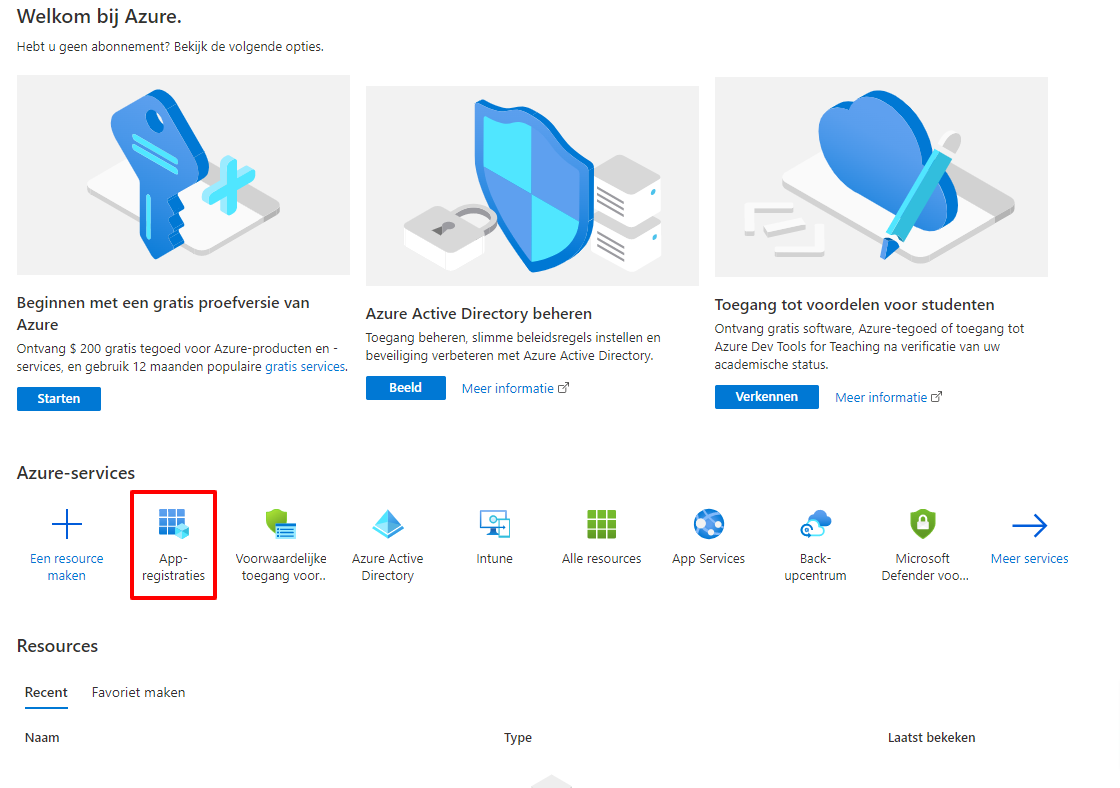
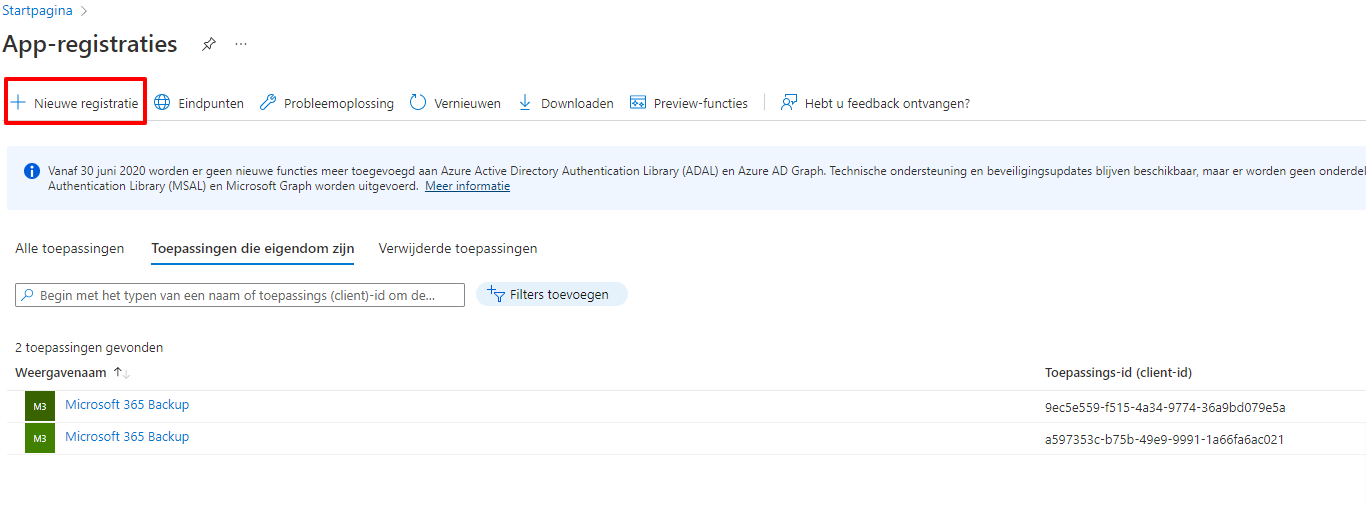
### 2. Navigiere zu App-Registrierungen und klicke auf Neue Registrierung

<figure><img src="https://2864415621-files.gitbook.io/~/files/v0/b/gitbook-x-prod.appspot.com/o/spaces%2FGr73dCEp7VK8XigZ4lH9%2Fuploads%2Fgit-blob-091ac4cb024c7f2c5db1a444ad414f5bd7fdd5d1%2Fprofiel-omgevingsbeheer-instellingen-omgevingsbeheer-03.png?alt=media" alt="App-registraties in het Azure-portaal"><figcaption><p>App-Registrierungen im Azure-Portal</p></figcaption></figure>

<figure><img src="https://2864415621-files.gitbook.io/~/files/v0/b/gitbook-x-prod.appspot.com/o/spaces%2FGr73dCEp7VK8XigZ4lH9%2Fuploads%2Fgit-blob-a9b5e6cdf55c14ebb2d594206198fc45913a4ba6%2Fprofiel-omgevingsbeheer-instellingen-omgevingsbeheer-04.png?alt=media" alt="Nieuwe registratie"><figcaption><p>Neue Registrierung</p></figcaption></figure>

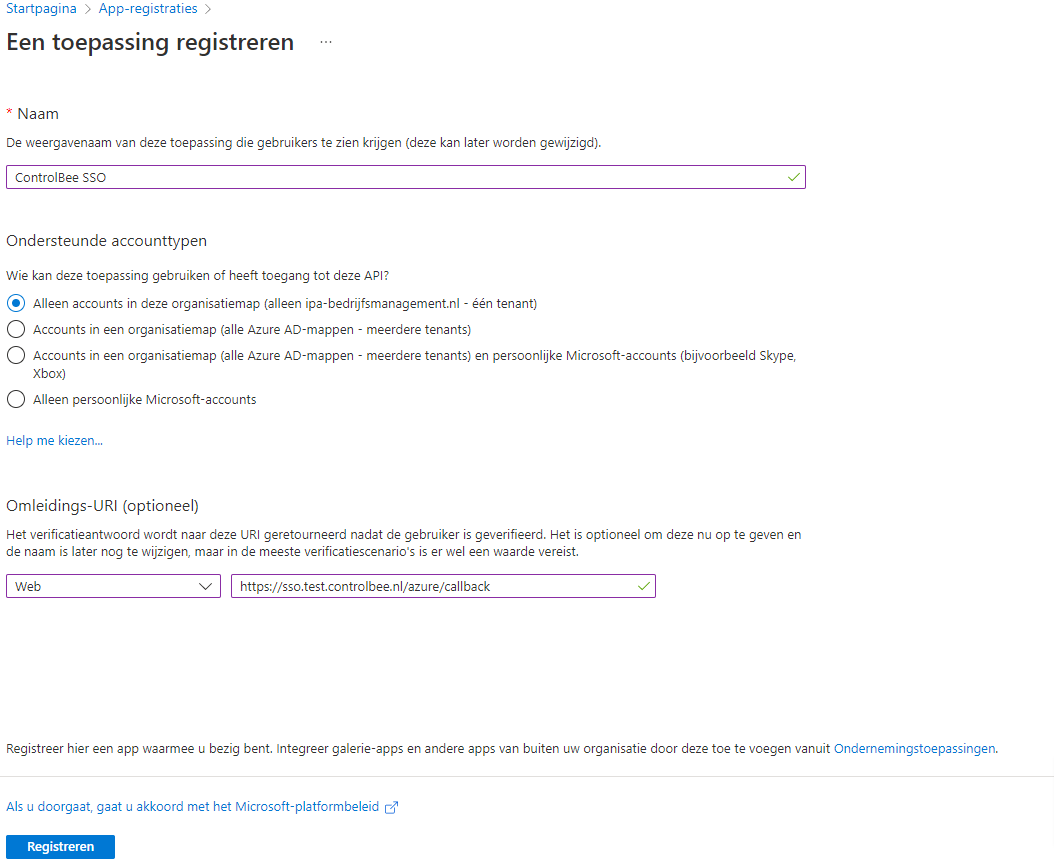
### 3. Registriere die Anwendung

* Fülle bei **Name** einen erkennbaren Namen ein, zum Beispiel 'ControlBee SSO'.
* Wähle bei **unterstützte Kontotypen** für 'Nur Konten in diesem Organisationsverzeichnis'.
* Wähle bei **Umleitungs-URL** für Web und gib die URL der ControlBee-Umgebung ein, gefolgt von `/azure/callback`.
* Klicke auf **Registrieren**.

<figure><img src="https://2864415621-files.gitbook.io/~/files/v0/b/gitbook-x-prod.appspot.com/o/spaces%2FGr73dCEp7VK8XigZ4lH9%2Fuploads%2Fgit-blob-bd903d0f2ae60a916d11215027816e4db1fcfa0f%2Fprofiel-omgevingsbeheer-instellingen-omgevingsbeheer-05.png?alt=media" alt="Het registratieformulier"><figcaption><p>Das Registrierungsformular</p></figcaption></figure>

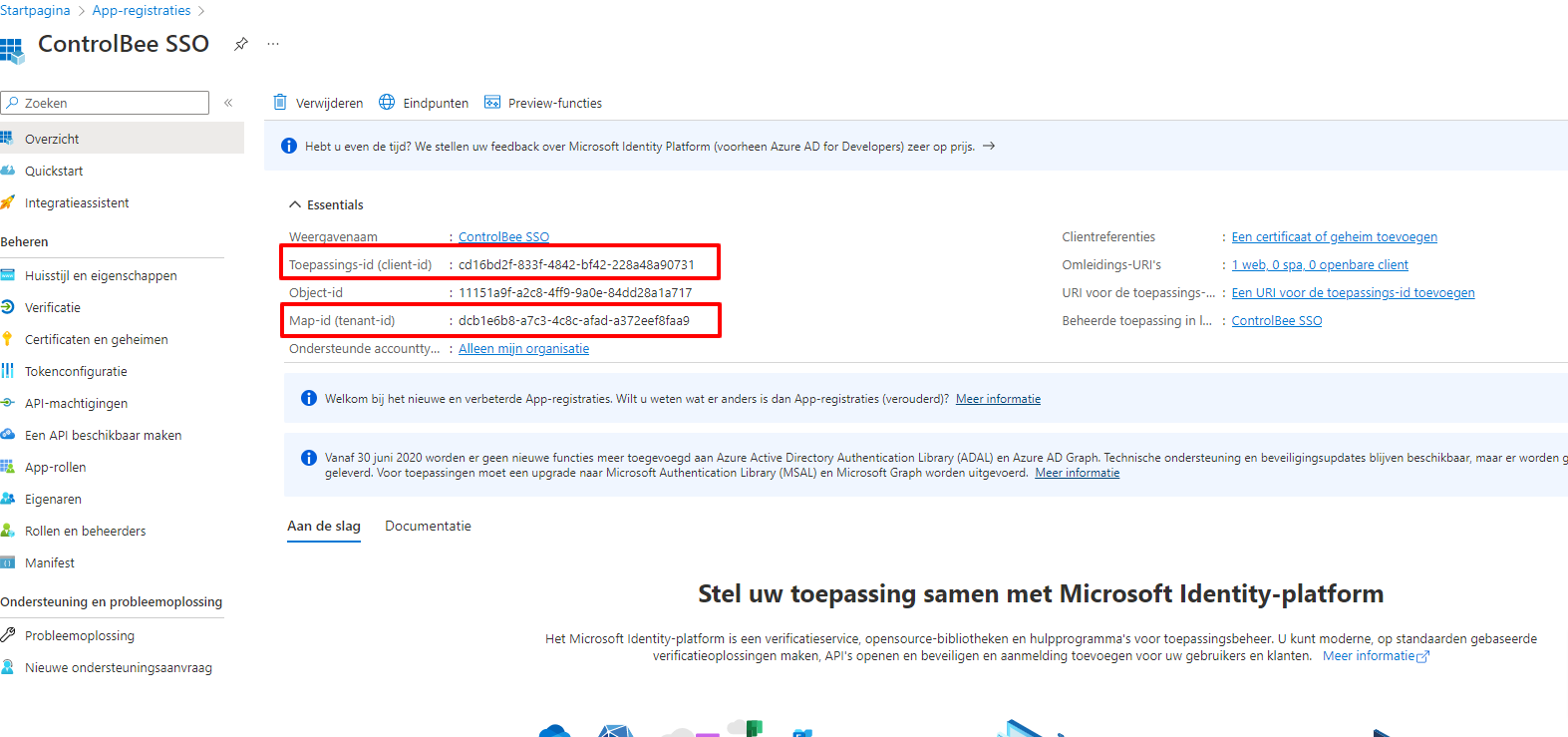
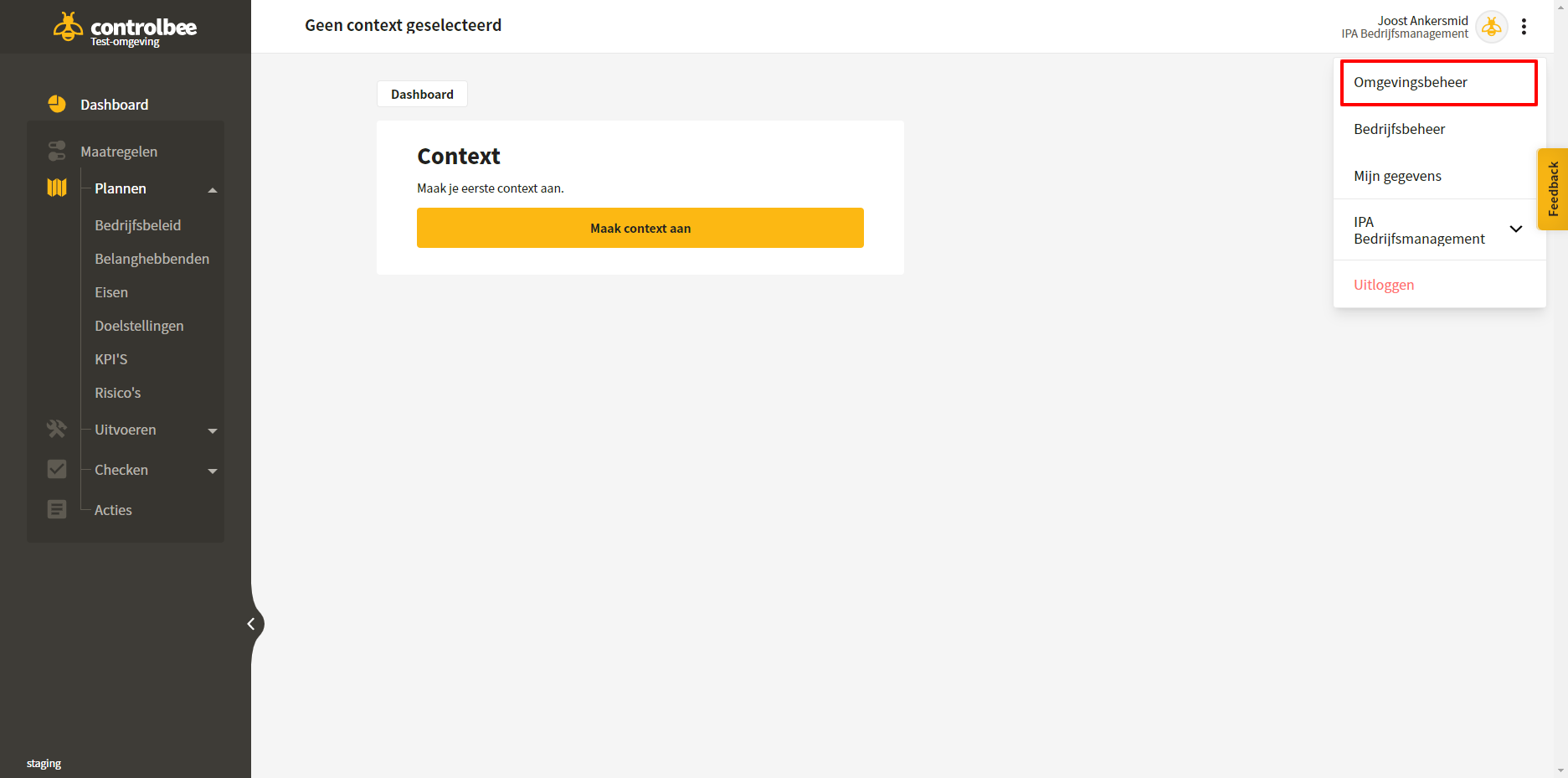
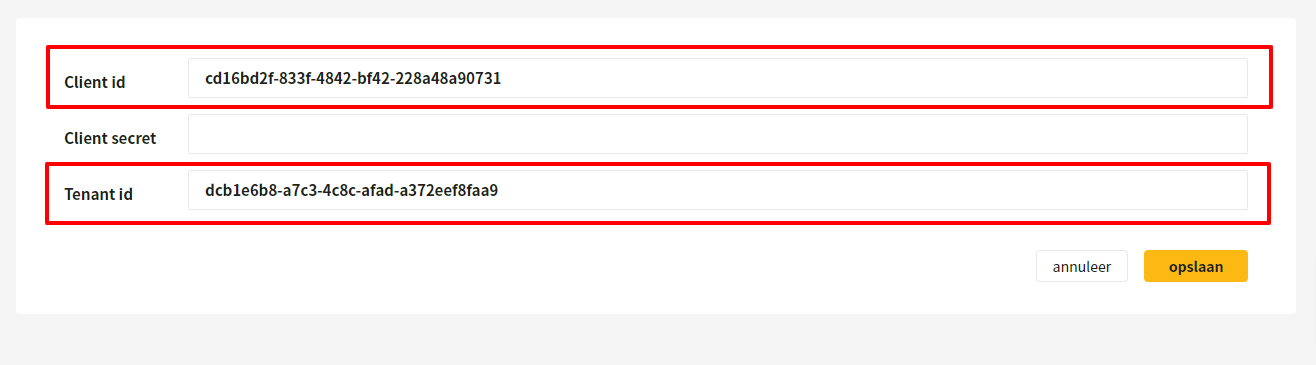
### 4. Kopiere die Client-ID und Tenant-ID nach ControlBee

<figure><img src="https://2864415621-files.gitbook.io/~/files/v0/b/gitbook-x-prod.appspot.com/o/spaces%2FGr73dCEp7VK8XigZ4lH9%2Fuploads%2Fgit-blob-e381b42ad33ce49ba663e057594a1bb7e4c47c0d%2Fprofiel-omgevingsbeheer-instellingen-omgevingsbeheer-06.png?alt=media" alt="De cliënt-id en tenant-id in Azure"><figcaption><p>Die Client-ID und Tenant-ID in Azure</p></figcaption></figure>

<figure><img src="https://2864415621-files.gitbook.io/~/files/v0/b/gitbook-x-prod.appspot.com/o/spaces%2FGr73dCEp7VK8XigZ4lH9%2Fuploads%2Fgit-blob-10ae5bd8aa1eb91a901dd5ab27d4a1041cd0b371%2Fprofiel-omgevingsbeheer-instellingen-omgevingsbeheer-07.png?alt=media" alt="Overnemen in het formulier in ControlBee"><figcaption><p>Übernahme in das Formular in ControlBee</p></figcaption></figure>

<figure><img src="https://2864415621-files.gitbook.io/~/files/v0/b/gitbook-x-prod.appspot.com/o/spaces%2FGr73dCEp7VK8XigZ4lH9%2Fuploads%2Fgit-blob-a4f16c34ad9a5be414318384cbffed5c66af1360%2Fprofiel-omgevingsbeheer-instellingen-omgevingsbeheer-08.png?alt=media" alt="Het ingevulde formulier"><figcaption><p>Das ausgefüllte Formular</p></figcaption></figure>

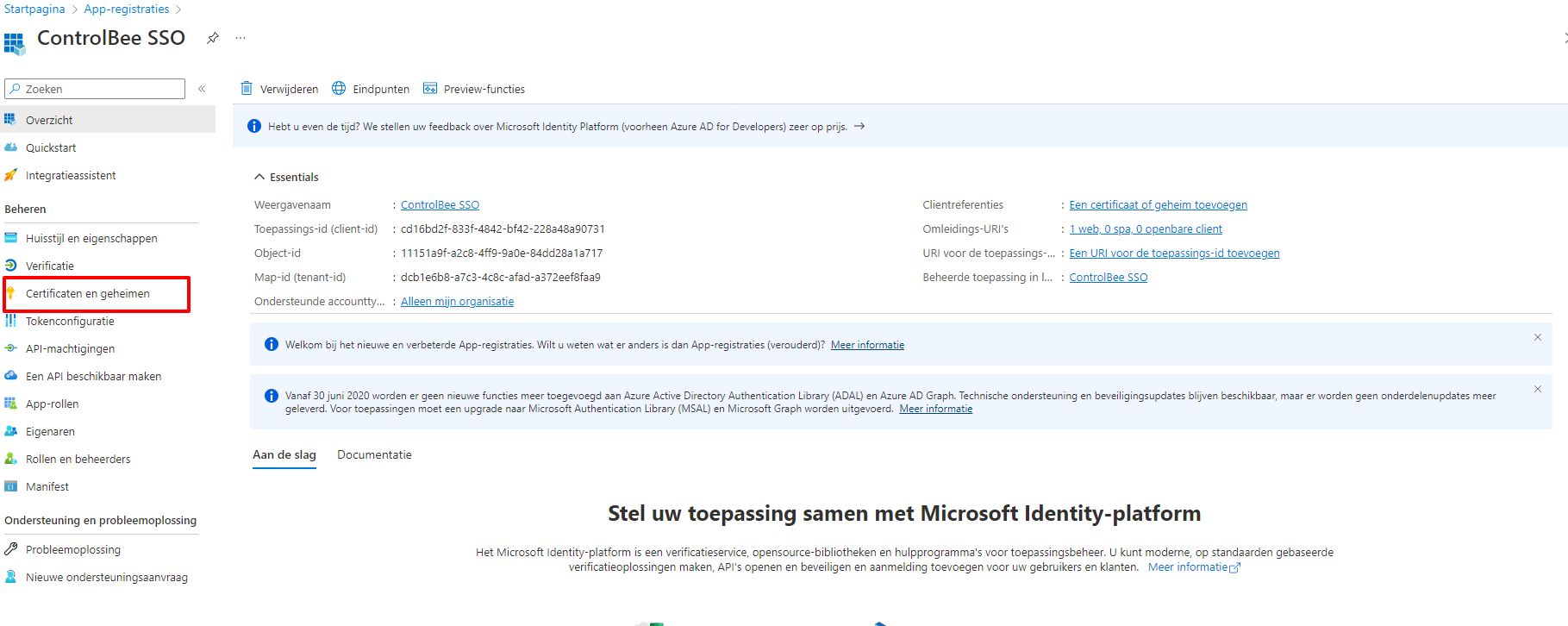
### 5. Navigiere zu Zertifikaten und Geheimnissen und klicke auf Neues Clientgeheimnis

<figure><img src="https://2864415621-files.gitbook.io/~/files/v0/b/gitbook-x-prod.appspot.com/o/spaces%2FGr73dCEp7VK8XigZ4lH9%2Fuploads%2Fgit-blob-5e0a1f824a5ab98b3a49ef3fc5d400b19a494e16%2Fprofiel-omgevingsbeheer-instellingen-omgevingsbeheer-09.png?alt=media" alt="Certificaten en geheimen"><figcaption><p>Zertifikate und Geheimnisse</p></figcaption></figure>

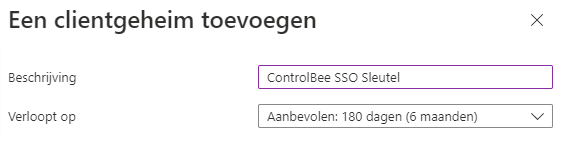
### 6. Gib eine Beschreibung ein und wähle die Gültigkeit des Schlüssels

<figure><img src="https://2864415621-files.gitbook.io/~/files/v0/b/gitbook-x-prod.appspot.com/o/spaces%2FGr73dCEp7VK8XigZ4lH9%2Fuploads%2Fgit-blob-93b8587d4e1c1e614fe972c188555e018ba58021%2Fprofiel-omgevingsbeheer-instellingen-omgevingsbeheer-10.png?alt=media" alt="Geldigheid van het clientgeheim"><figcaption><p>Gültigkeit des Clientgeheimnisses</p></figcaption></figure>

### 7. Kopiere den Schlüssel aus dem Feld Wert

<figure><img src="https://2864415621-files.gitbook.io/~/files/v0/b/gitbook-x-prod.appspot.com/o/spaces%2FGr73dCEp7VK8XigZ4lH9%2Fuploads%2Fgit-blob-ec36e5cf4c9c98fb4bea0d6e28273fb3fafc0f66%2Fprofiel-omgevingsbeheer-instellingen-omgevingsbeheer-11.png?alt=media" alt="Het veld Waarde"><figcaption><p>Das Feld Wert</p></figcaption></figure>

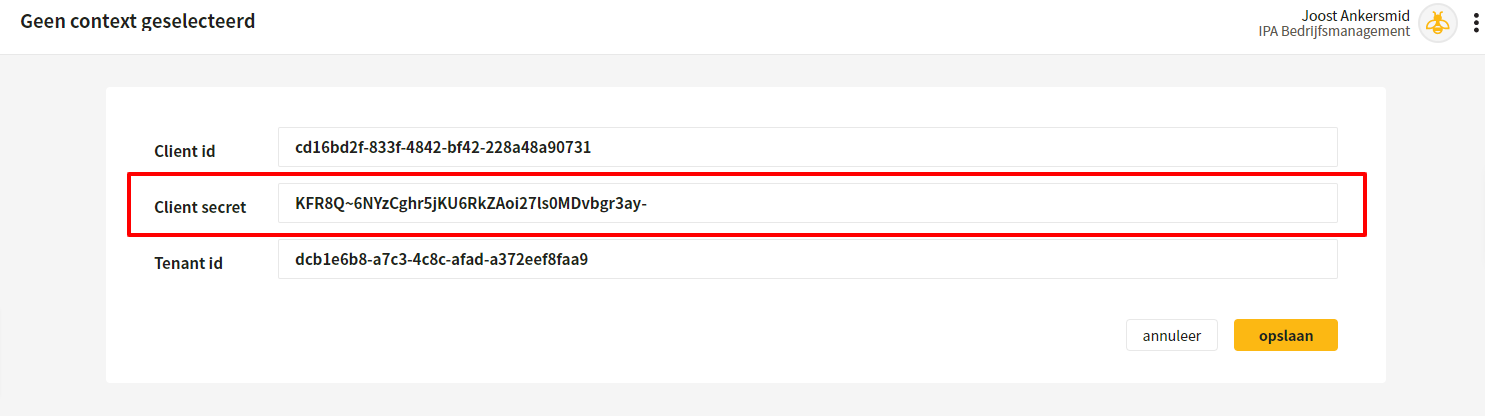
### 8. Füge den Wert in ControlBee ein und speichere

<figure><img src="https://2864415621-files.gitbook.io/~/files/v0/b/gitbook-x-prod.appspot.com/o/spaces%2FGr73dCEp7VK8XigZ4lH9%2Fuploads%2Fgit-blob-b224c99f3a82608feb6c420fe320dd287cdd533f%2Fprofiel-omgevingsbeheer-instellingen-omgevingsbeheer-12.png?alt=media" alt="De sleutel opslaan in ControlBee"><figcaption><p>Den Schlüssel in ControlBee speichern</p></figcaption></figure>

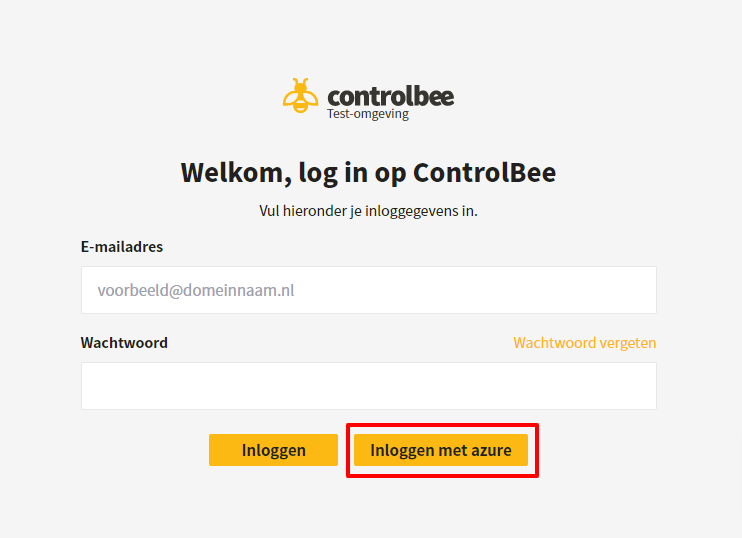
### 9. Melde dich ab und wähle auf dem Anmeldebildschirm Anmelden mit Azure

E-Mail-Adresse und Passwort können leer bleiben.

<figure><img src="https://2864415621-files.gitbook.io/~/files/v0/b/gitbook-x-prod.appspot.com/o/spaces%2FGr73dCEp7VK8XigZ4lH9%2Fuploads%2Fgit-blob-411afeadd9ddb6f667cae3b14767fcb523b37c25%2Fprofiel-omgevingsbeheer-instellingen-omgevingsbeheer-13.png?alt=media" alt="Inloggen met Azure"><figcaption><p>Mit Azure anmelden</p></figcaption></figure>

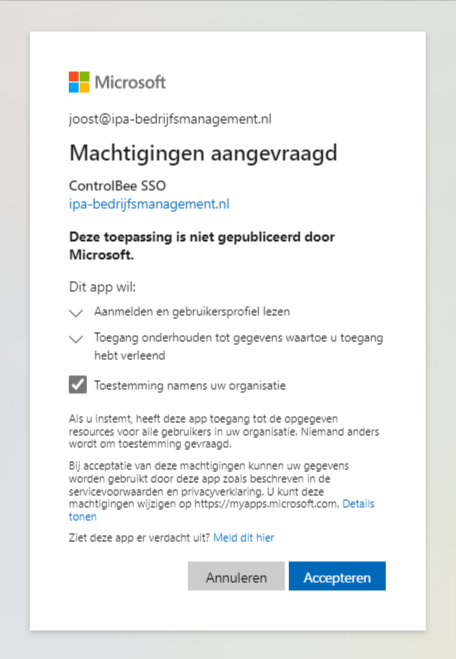
### 10. Akzeptiere die Berechtigungen

Beim ersten Anmelden über Azure müssen die Berechtigungen akzeptiert werden. Danach sollte die Anmeldung erfolgreich sein.

<figure><img src="https://2864415621-files.gitbook.io/~/files/v0/b/gitbook-x-prod.appspot.com/o/spaces%2FGr73dCEp7VK8XigZ4lH9%2Fuploads%2Fgit-blob-2092bb8adfa352b4ea47043d5d5d3385e574e089%2Fprofiel-omgevingsbeheer-instellingen-omgevingsbeheer-14.png?alt=media" alt="Het machtigingenscherm"><figcaption><p>Der Berechtigungsbildschirm</p></figcaption></figure>

<figure><img src="https://2864415621-files.gitbook.io/~/files/v0/b/gitbook-x-prod.appspot.com/o/spaces%2FGr73dCEp7VK8XigZ4lH9%2Fuploads%2Fgit-blob-3fcf5379c1114331a0000c5f93af4f0fdfc60d01%2Fprofiel-omgevingsbeheer-instellingen-omgevingsbeheer-15.png?alt=media" alt="Succesvol ingelogd"><figcaption><p>Erfolgreich angemeldet</p></figcaption></figure>

{% hint style="warning" %}
Der Wert des Clientgeheimnisses ist nur einmal sichtbar. Ist der Schlüssel abgelaufen, muss die Schritt-für-Schritt-Anleitung ab Schritt 5 erneut ausgeführt werden.
{% endhint %}

{% hint style="info" %}
Nur Benutzer mit der Rolle Umgebungsadministrator können sich danach noch mit Benutzername und Passwort anmelden. Alle anderen Benutzertypen werden immer zu Azure weitergeleitet, auch wenn sie einen Benutzernamen und ein Passwort eingeben.
{% endhint %}


---

# Agent Instructions
This documentation is published with GitBook. GitBook is the documentation platform designed so that both humans and AI agents can read, navigate, and reason over technical content effectively. Learn more at gitbook.com.

## Querying This Documentation
If you need additional information that is not directly available in this page, you can query the documentation dynamically by asking a question.

Perform an HTTP GET request on the current page URL with the `ask` query parameter, and the optional `goal` query parameter:

```
GET https://docs.controlbee.nl/de/profiel/omgevingsbeheer/instellingen-omgevingsbeheer.md?ask=<question>&goal=<endgoal>
```

`ask` is the immediate question: it should be specific, self-contained, and written in natural language.
`goal` is optional and describes the broader end goal you are ultimately trying to accomplish on behalf of the user. GitBook uses it to tailor the answer towards what is most useful for that goal.

The response will contain a direct answer to the question and relevant excerpts and sources from the documentation.

Use this mechanism when the answer is not explicitly present in the current page, you need clarification or additional context, or you want to retrieve related documentation sections.